Documentation
For
- Administrator
- Editor
Page tree and URLs
Site content
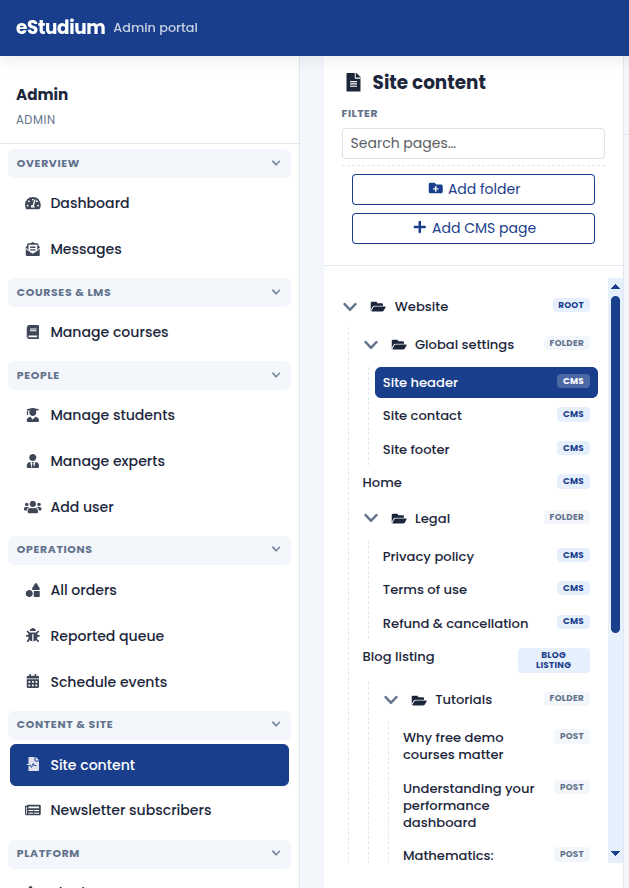
Site content is organised as a page tree: folders and pages in the admin sidebar, each with a slug that becomes part of the public URL. Understanding the tree helps you add campaign pages, keep legal pages grouped, and avoid breaking links.
How the tree is structured
- Pages are visitable URLs (Home, About us, Contact us, Privacy policy, and custom landing pages).
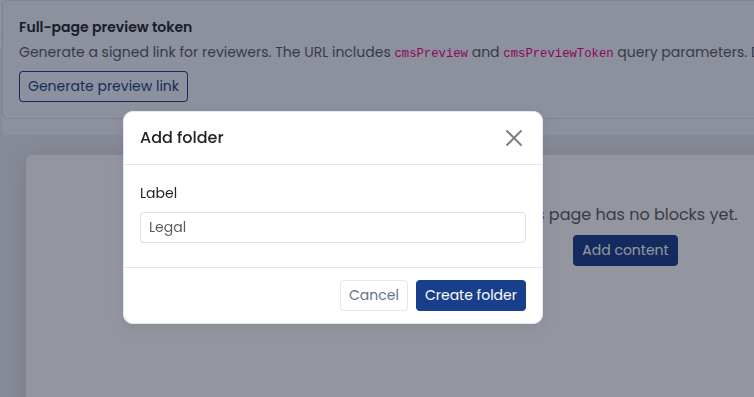
- Folders group related pages only; they are not public URLs by themselves (for example a "Legal" folder holding privacy and terms).
- System pages (Home, policies, Site header, Site footer, Blogs root) are protected: you edit them but usually cannot delete them.
- Site header and Site footer are special pages: they control global chrome, not a single marketing body (see Site header and footer).
URLs and slugs
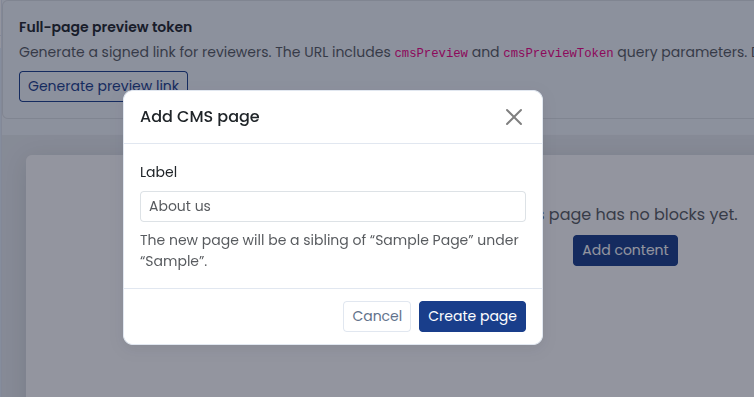
When you Add CMS page or rename a page, the system suggests a URL-friendly slug from the title (lowercase, hyphens instead of spaces). The live path is your institute domain, plus any site prefix your host configured, plus the page slug.
Examples (your paths may differ):
- Home: site root or /home
- About us: /about-us
- Custom campaign: /campaigns/summer-intake when nested under a folder
Change slugs carefully after go-live: old bookmarks and search results may break unless your team sets up redirects.
Add a folder or page
- Sign in as Administrator.
- Open Site content (or Manage pages) in the sidebar.
- In the tree, select the parent (site root, a folder, or an existing section).
- Choose Add folder to group future pages, or Add CMS page for a new public page.
- Enter a clear title; review the suggested slug and adjust if marketing needs a specific URL.
- Select the new page and choose Edit page content to open the block builder (see Block builder workflow).
- Build blocks, preview, and publish when ready.
Delete or reorganise
- Delete custom pages and empty folders when you no longer need them.
- You cannot delete built-in system pages or folders that still contain pages.
- Moving pages between folders may change public URLs if your setup includes folder segments in paths; confirm with preview links before announcing.
What you gain
- Clear structure for campaigns, legal pages, and marketing without duplicate sites
- Predictable URLs for ads, email, and printed material
- One tree shared by all administrators who edit Site content
Troubleshooting
| 404 on new page | Page published; slug matches link you shared |
|---|---|
| Cannot delete page | Remove or move child pages first; system pages are protected |
| Duplicate slug error | Pick a unique slug within your site |
| Wrong page opens | Selected node in tree before editing |