Documentation
- Administrator
- Editor
Block builder workflow
Site content
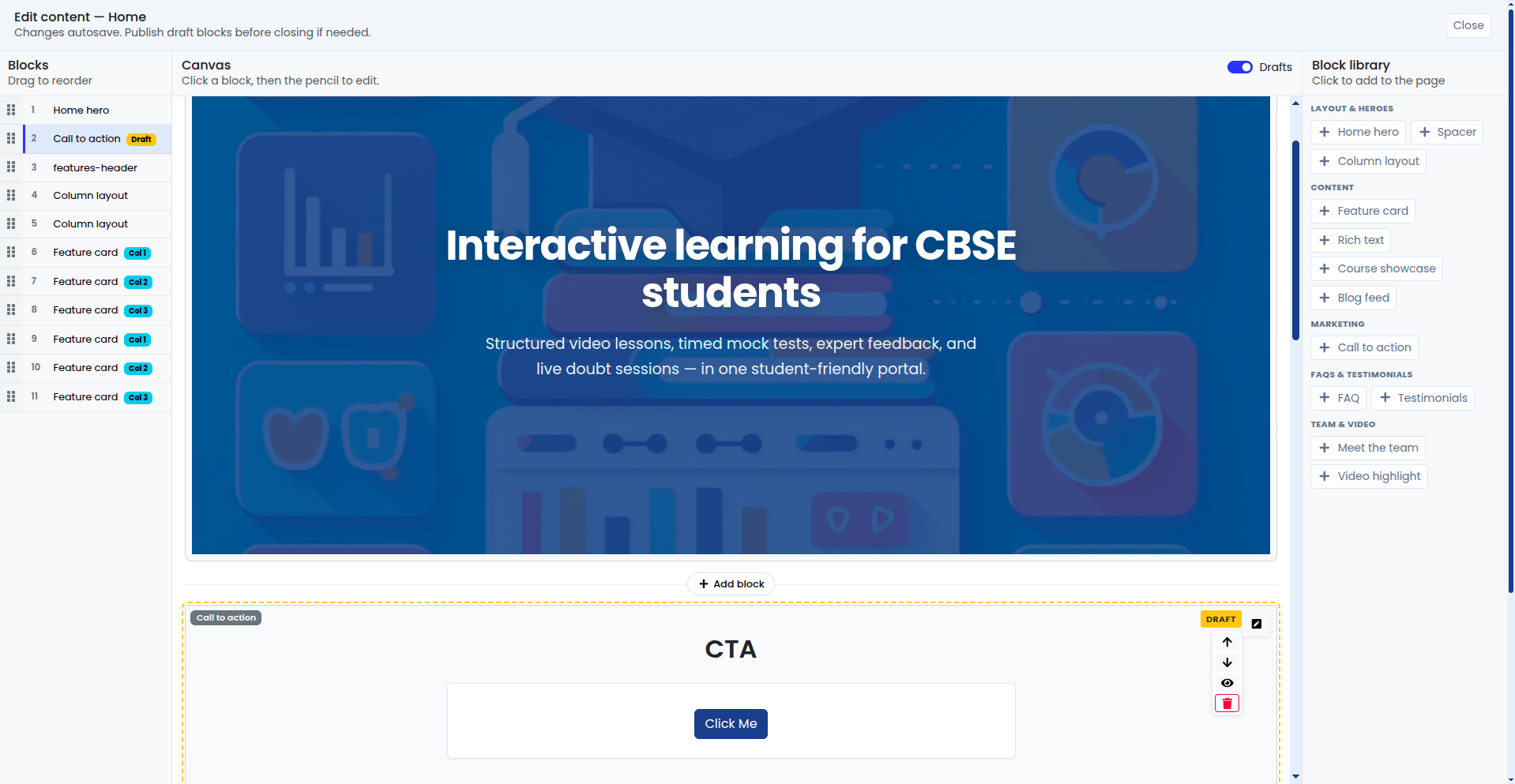
The block builder is the full-screen editor opened from Site content when you choose Edit page content. This guide explains how to work efficiently and avoid common publishing mistakes.
Open the builder
- Site content → select a page in the tree.
- Click Edit page content (or equivalent action on the page workspace).
- The builder shows: block list (order), canvas preview, block library, and inspector for the selected block.
Add a block
- Open the library (grouped by category: Layout, Content, Marketing, FAQs & testimonials, Team & video, Global settings).
- Click a block type (for example Rich text, Feature card, FAQ).
- The block appears at the bottom or insertion point; select it to edit properties.
- Fill required fields (headline, images, HTML).
- Save the block.
Use CMS block reference to choose the right block for each job.
Edit and reorder
- Select a block to edit text, images, or links in the inspector.
- Drag blocks in the list to change order.
- Use Spacer blocks to add vertical breathing room between sections.
Rich text blocks
Rich text supports headings, lists, links, and inline images. Use the toolbar for formatting; upload images through the integrated upload action when available. Avoid pasting from Word with heavy styles: paste plain text and format in the editor.
Distraction-free mode (when available) expands the editor for long policy pages.
Draft and publish
- Saving keeps a block in draft until you publish it.
- Publish a single block when that section is ready, or use Publish all drafts before launch.
- Unpublished drafts are visible in admin preview with a token, not to anonymous visitors.
Preview devices
From the page workspace (outside or inside builder), open Preview and switch desktop / tablet / mobile to catch line breaks and image cropping issues.
Full-page preview token
For stakeholder review before go-live, generate a preview link (signed token) from the page workspace. Share only with reviewers; tokens expire per server policy.
Patterns that work well
- Home above the fold: Home hero + CTA banner
- Three benefits: Column layout with three feature cards
- Social proof: Testimonials
- Admissions FAQ: FAQ block with accordion items
- Show top courses: Course showcase
- Contact page: Page hero + Contact details + Map embed
What you gain
- Predictable layouts without HTML knowledge
- Safe staging with drafts
- Reusable block patterns across pages
Troubleshooting
| Block not on live site | Published state |
|---|---|
| HubSpot form empty | Portal ID and form ID |
| Map wrong location | Latitude/longitude in Map embed |
| Course showcase empty | Published courses; selection mode |