Documentation
- Student
First steps for students
Getting started
Students use the public website to discover courses and the learning portal to study. Registration options depend on your institute: email, mobile OTP, or Google/Facebook when an administrator enables social login. On first visit you may need to accept cookie choices before analytics or optional features load.
This page is a short getting-started path: create access, find a course, and open your first lesson. Deeper topics (subscriptions, quizzes, assignments) live in the student section of the documentation.
Before you begin
Have ready:
- Email or mobile number your institute accepts for registration
- Payment method if the course is paid (or ask the institute to enroll you manually)
- A modern browser; allow cookies for login if you use “Reject non-essential” you may need to sign in again on some devices
Use Forgot password on the login page if you already registered but cannot sign in.
Step 1: Register or log in
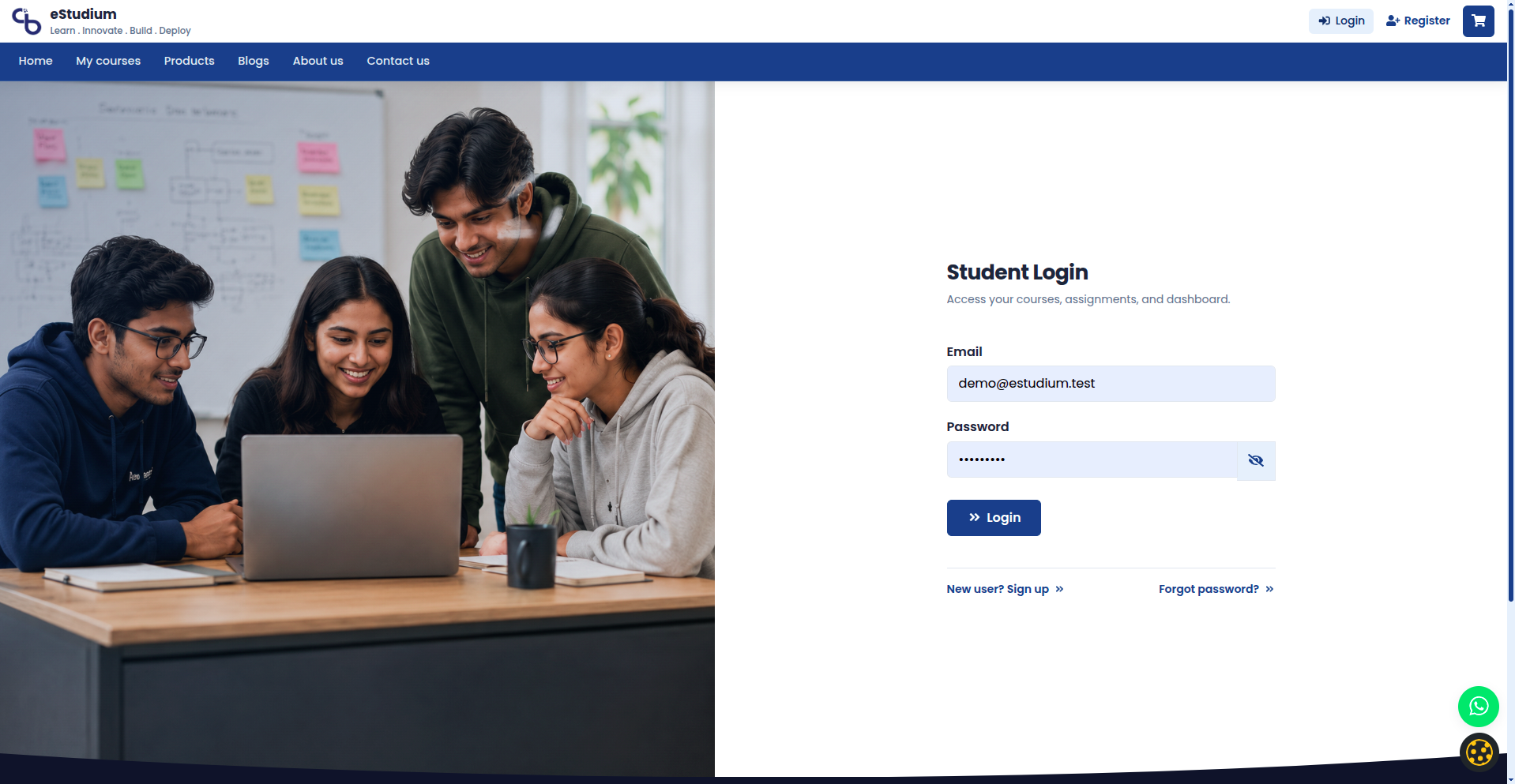
- Open your institute URL and choose Student login or Register (labels vary by theme).
- Complete registration with email or mobile OTP, or use Google / Facebook if shown.
- Verify your account when the institute sends OTP or email confirmation.
- Sign in and land on the dashboard (messages, meetings, or announcements may appear here).
If social buttons are missing, the institute has not enabled them; use email or mobile instead.
Step 2: Cookie and privacy choices
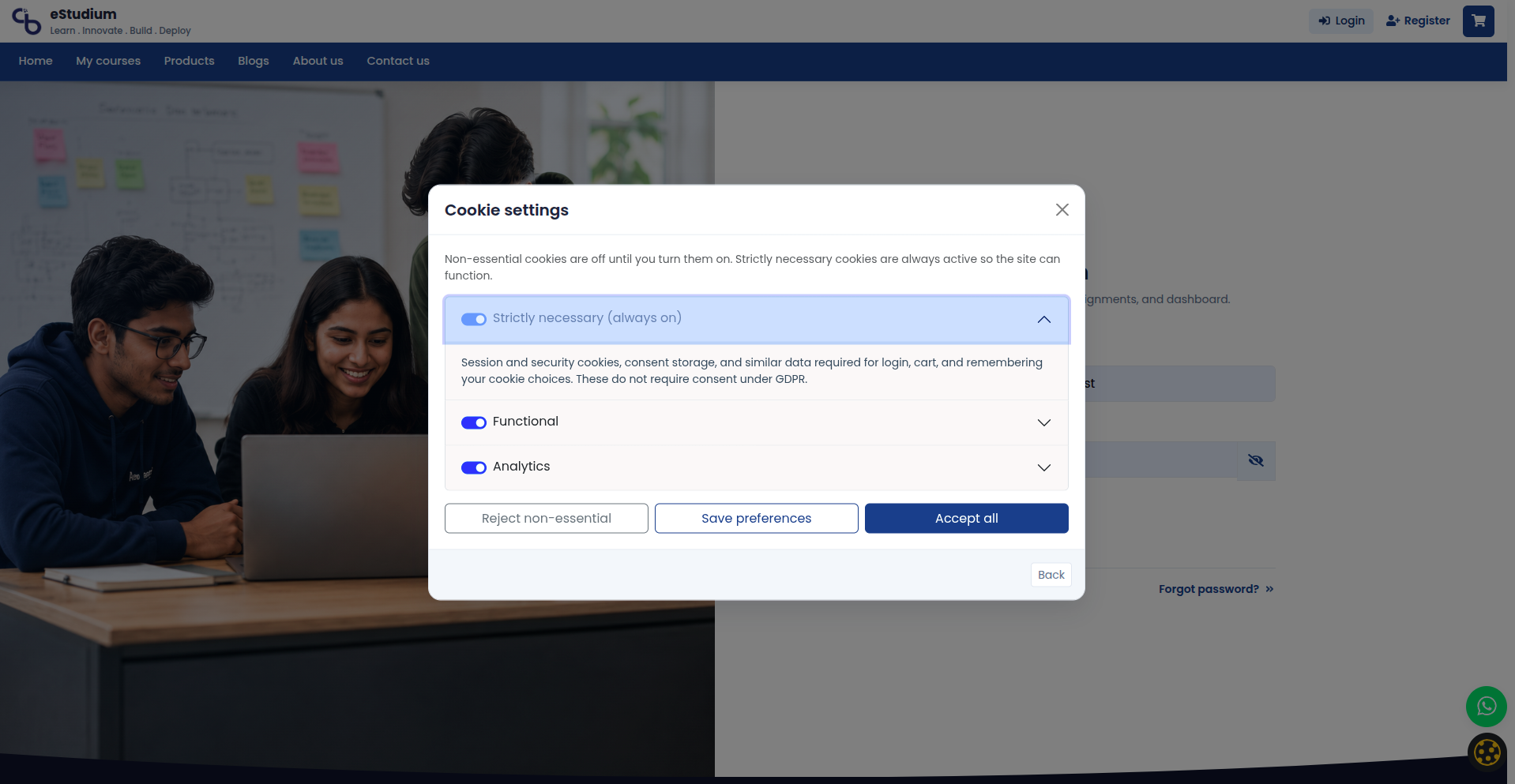
- On first visit, read the cookie banner.
- Choose Accept all, Reject non-essential, or Cookie settings according to your preference.
- Open Privacy policy from the site footer if you need details on data use.
Your choices are stored in the browser; clearing site data may show the banner again.
Step 3: Find and access a course
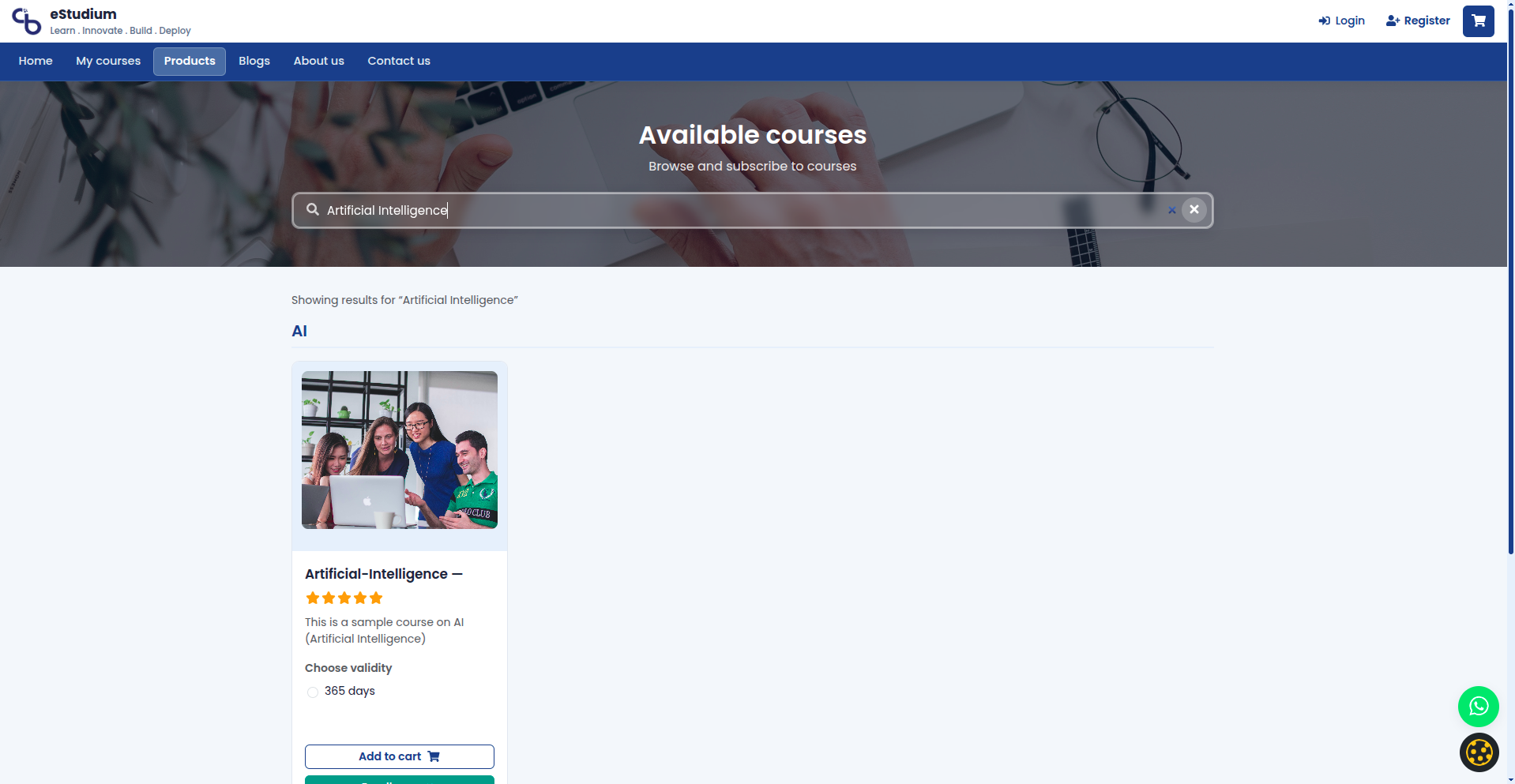
- Browse Products or the course catalogue on the public site.
- Open a course detail page and read pricing, duration, and medium (language).
- For paid courses, add to cart and complete checkout; for free or institute-assigned courses, follow enrol prompts or wait for admin enrollment.
- Confirm My courses lists the course after purchase or assignment.
See Commerce and subscriptions if checkout fails or renewal dates look wrong.
Step 4: Start learning in order
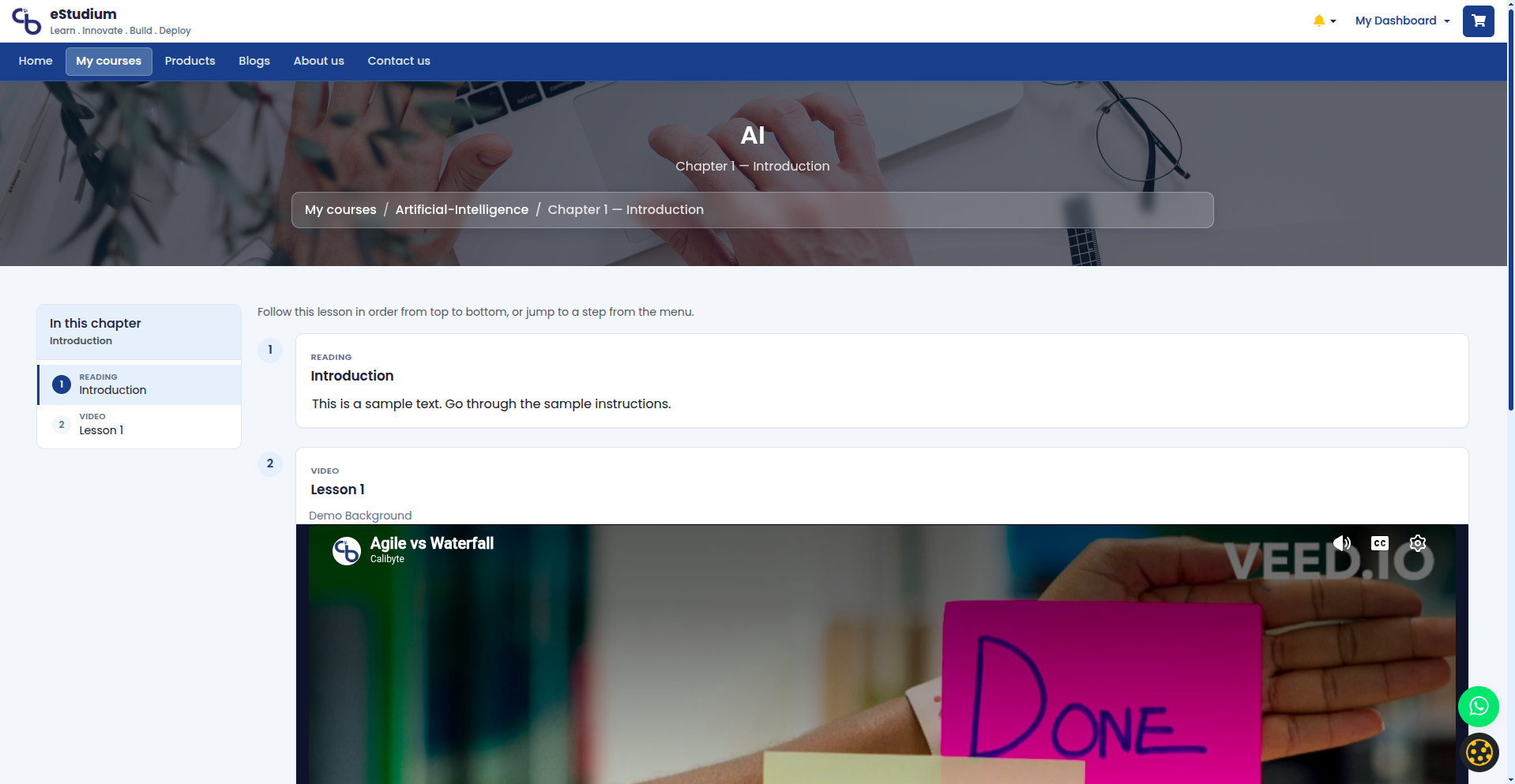
- Open My courses and select your course.
- Follow sections in order; each section lists activities (video, reading, quiz, assignment).
- Open an activity and mark progress where the player offers complete or continue.
- Return to the dashboard for messages, live meetings, or events your institute schedules.
See Courses and learning path for how outlines and progress work.
What you gain
- Working login and correct cookie settings for your browser
- A purchased or assigned course visible under My courses
- A predictable path through sections instead of hunting for files
Troubleshooting
| Course not in My courses | Payment completed; subscription active; correct login account |
|---|---|
| Activity will not open | Subscription expired; activity unpublished; try another browser |
| OTP not received | Mobile number correct; spam folder for email; institute SMS limits |
| Cookie banner every visit | Browser blocking storage; avoid strict private mode for login |