Documentation
- Administrator
Plugins
Platform
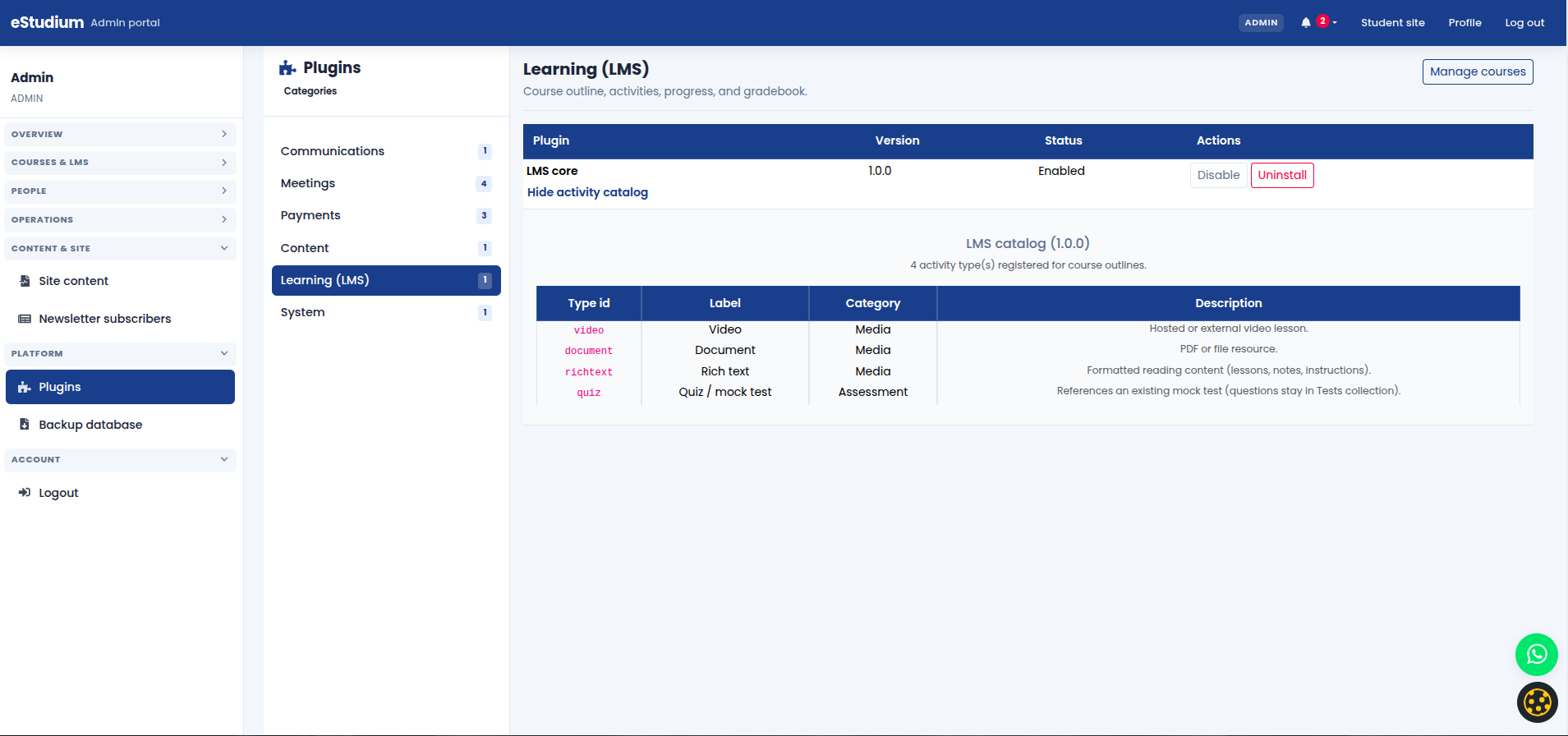
The Plugins screen lets an Administrator turn institute modules on or off: CMS site tools, LMS, messaging integrations, meeting providers, payment gateways, and optional diagnostics. Disabled plugins hide related menus, student features, and API routes so you can stage rollouts without deleting configuration.
Some plugins also respect deployment settings (environment variables). If operations disabled a module at the server level, the admin UI may not be able to turn it on until your technical partner updates the environment.
What administrators control
From Platform → Plugins (sidebar label may vary):
- Enable a module when your institute is ready to use it (credentials configured, staff trained).
- Disable a module to hide features without uninstalling server code.
- Review which capabilities are active before admission or marketing campaigns.
Experts and students never access this screen; changes here affect the whole institute.
Common modules
Exact names on the Plugins screen match your deployed catalog; institutes may not see every row.
- CMS: Public website and Site content workflows
- LMS core: Courses, outlines, mock tests, gradebook
- WhatsApp chat: Footer chat widget configured
- Meeting providers: Live classes (Zoom, BigBlueButton, Google Meet, etc.)
- Payment providers: Paid checkout on Products
- Social login: Google or Facebook sign-in
- Health / diagnostics: Optional ops checks
Enable a plugin safely
- Complete server configuration first (API keys, webhooks, OAuth redirect URLs) with your technical contact.
- Open Plugins and enable the target module.
- Refresh the admin session or re-login if menus do not update immediately.
- Smoke-test the feature: one student path and one admin path (for example a test checkout or a test meeting).
- Document the change for support staff (what changed, when, who to call if checkout or login fails).
Before you disable a plugin
- Confirm no active admission campaign depends on it (payments, social login, WhatsApp).
- Warn staff if a menu they use daily will disappear.
- Prefer disable over ad hoc workarounds; re-enable when configuration is fixed.
Disabling LMS or CMS removes large parts of the product; schedule during maintenance windows.
Deployment vs admin toggle
If enable appears to save but the feature stays missing, ask your technical partner to check server env and plugin catalog, not only the UI.
- Plugins screen (Mongo state): Runtime enable/disable for admins; applies on next request
- Environment allowlist: Can prevent enabling until redeploy; expert cannot override
What you gain
- Controlled rollout of features per institute
- Faster support when “missing menu” maps to a disabled plugin
- One place to see which major modules are live before go-live reviews
Troubleshooting
| Menu item missing | Related plugin disabled under Plugins; hard refresh after save |
|---|---|
| Integration inactive | Server credentials; webhook URL; redeploy after env change |
| Cannot enable plugin | Deployment may block plugin; check with technical team |
| Feature worked yesterday | Recent disable on Plugins screen; compare with change log |
| Student sees feature, admin does not | Role and route differ; verify admin plugin plus LMS/CMS flags |
| Payment or login broken after enable | Merchant or OAuth credentials incomplete; run one test transaction |
See also
You finished Platform
Continue to Expert →