Documentation
- Expert
First steps for experts
Getting started
Experts sign in through the Expert login page but use the same technical portal shell as admins with a reduced menu focused on teaching: assigned courses, assignments, meetings, students (within policy), messages, and reported quiz questions. Experts cannot change site-wide plugins or the full student roster unless your institute allows it.
This page is a short onboarding path for a new teacher or subject expert. It is not a full manual: use the linked expert articles for depth on outlines, assignments, and live sessions.
Before you begin
Your administrator should have:
- Created your expert account and shared login details
- Assigned at least one course you will teach
- Confirmed whether you may message students or only view progress
If you cannot see a course you expect, ask an admin to check Manage experts → course assignment before you change outline content.
Step 1: Sign in and orient yourself
- Open your institute URL and choose Expert login (not Admin login unless you hold both roles).
- Enter your User ID (or email) and password.
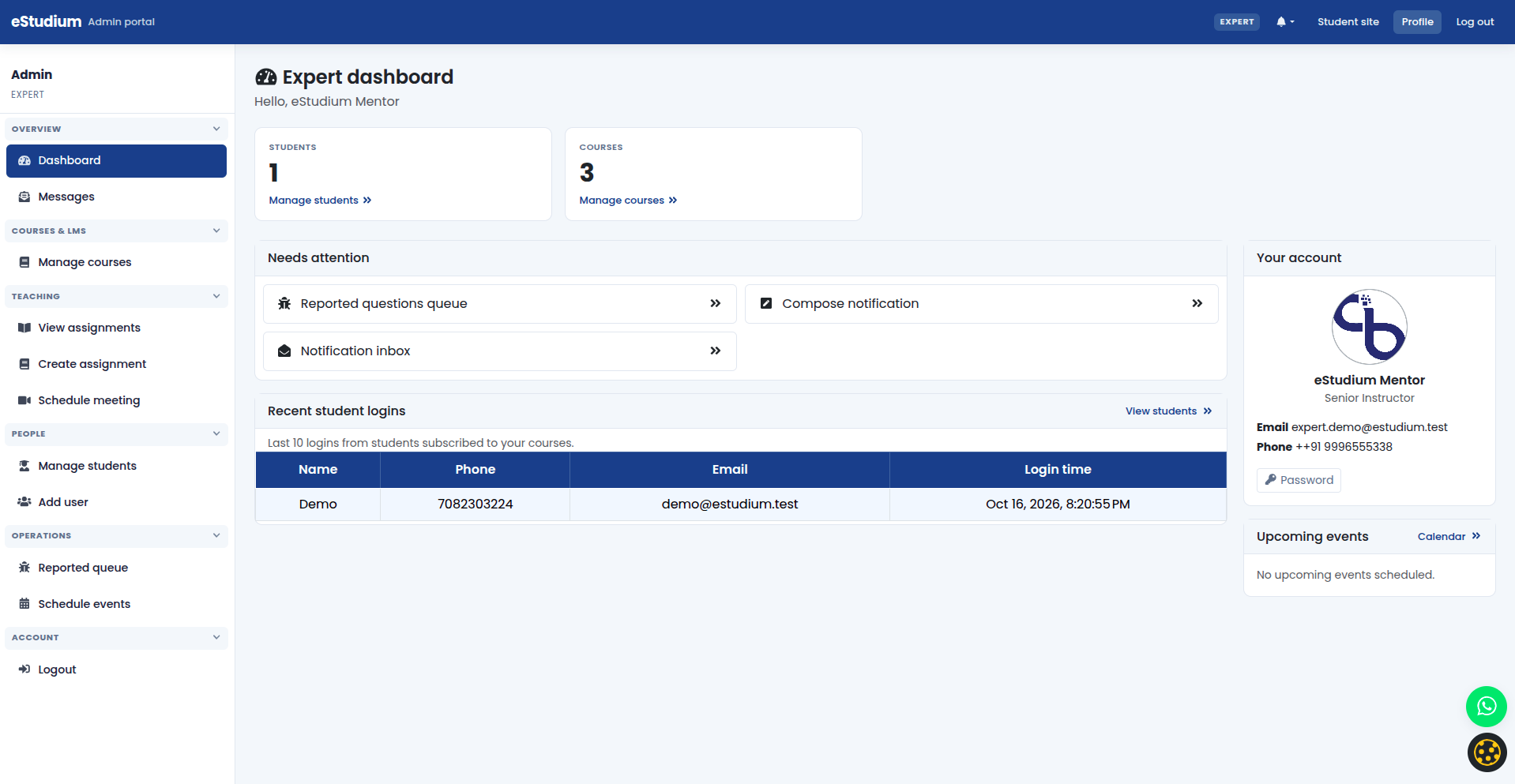
- Scan the sidebar: typical groups include Overview, Courses & LMS, Operations, and Communication. You will not see full Platform or Site content unless your role includes them.
Use the dashboard for messages and upcoming meetings. If the menu looks like a full admin tree, confirm with your institute which login URL you should use.
Step 2: Open your assigned courses
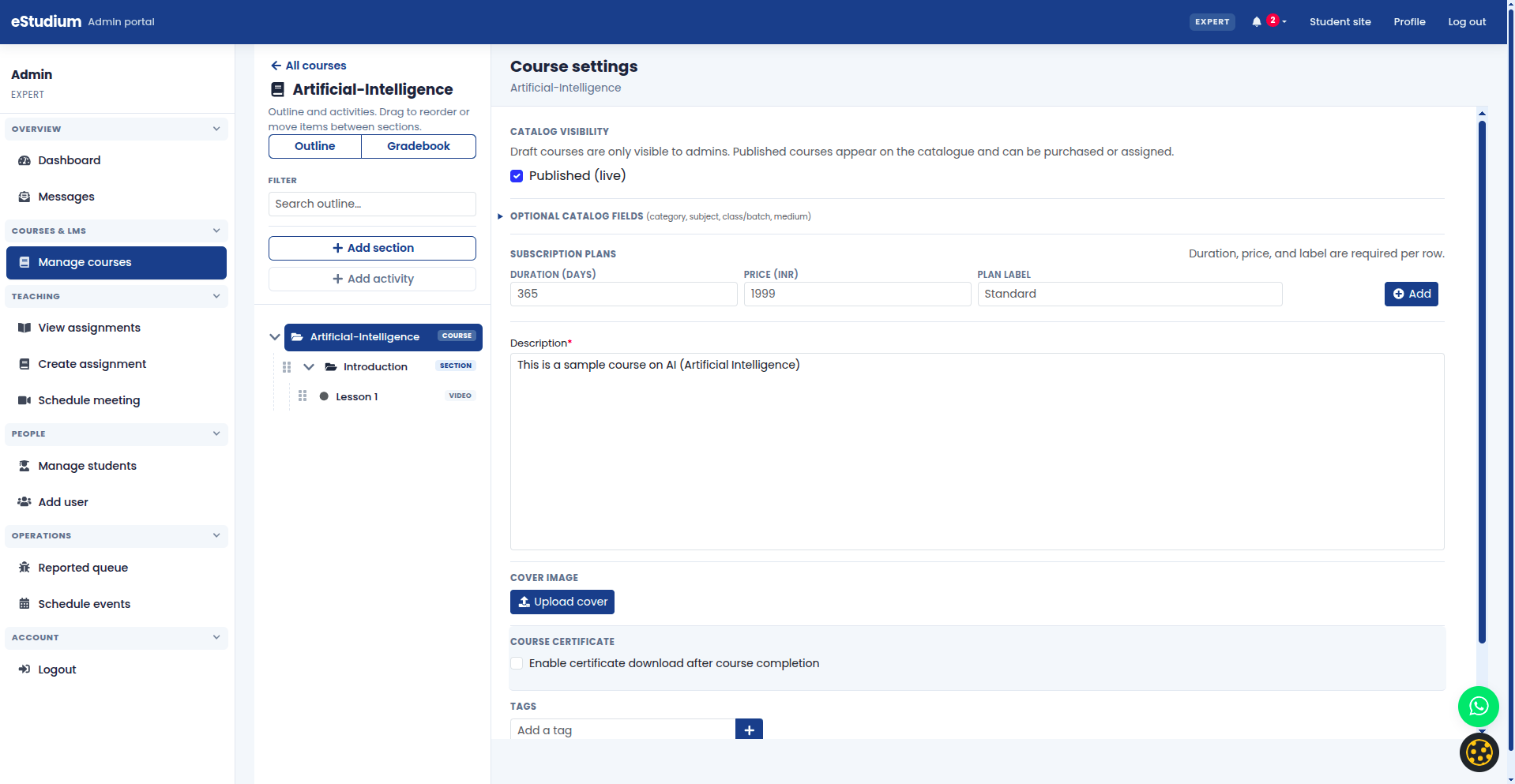
- Open Manage courses (or the courses list your deployment labels for experts).
- Confirm only assigned courses appear; you cannot edit catalogue metadata you do not own unless policy allows.
- Open one course and read its description and publication status so you know what students already see on the public site.
See Courses and outline (expert) for outline editing in detail.
Step 3: Publish outline activities students should see
- Open the course Outline.
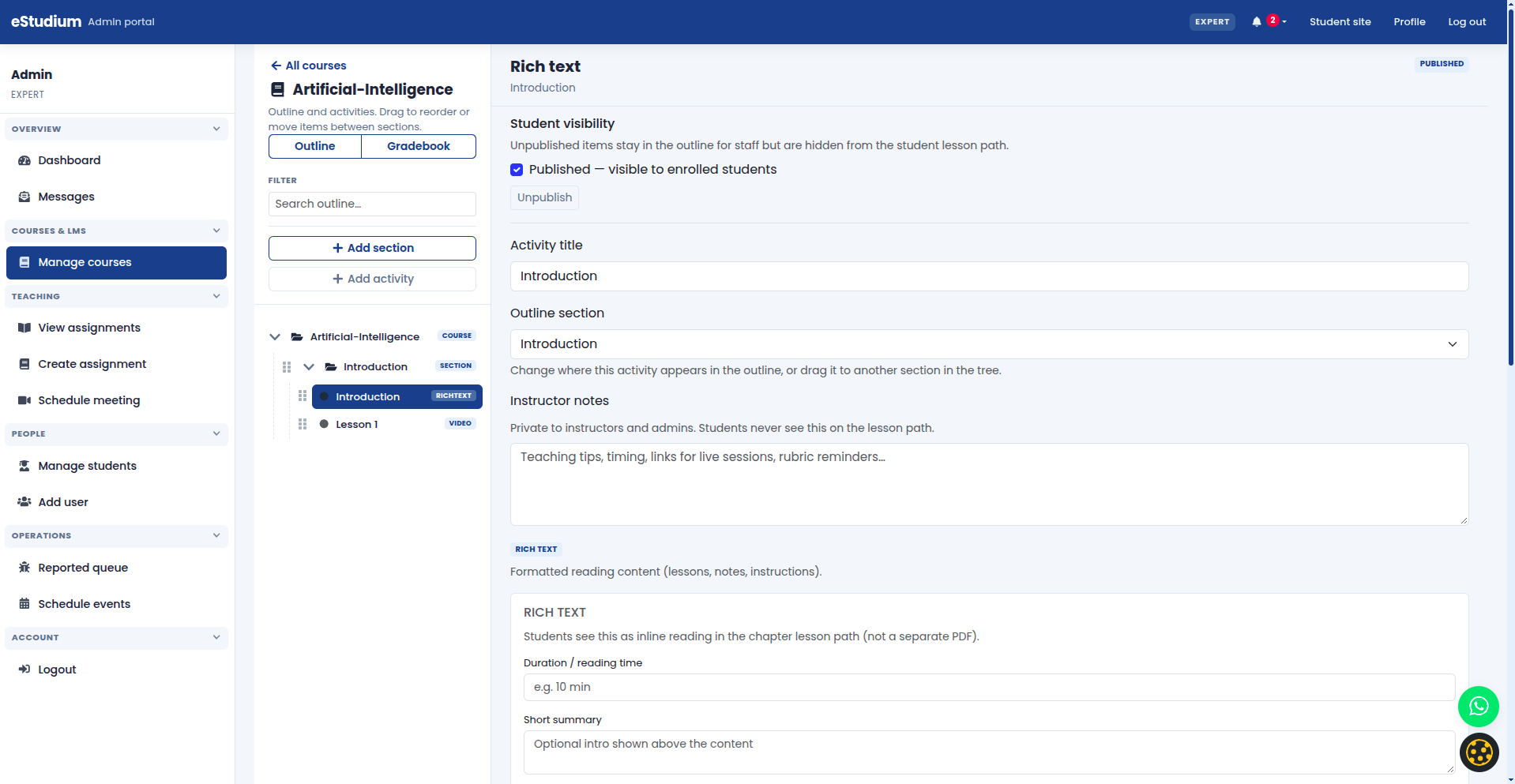
- Walk sections top to bottom; open each activity and check published state.
- Hide or unpublish draft activities until copy and media are ready.
- Add a welcome Rich text or Video activity if the section is empty.
- Preview as a student if your institute provides a test account.
Students only see published activities on their path. Unpublished items are the most common reason learners say a course looks “empty.”
Step 4: Assignments, meetings, and day-to-day teaching
- Assignments: create at least one assignment with a clear deadline and instructions; link it to the correct course.
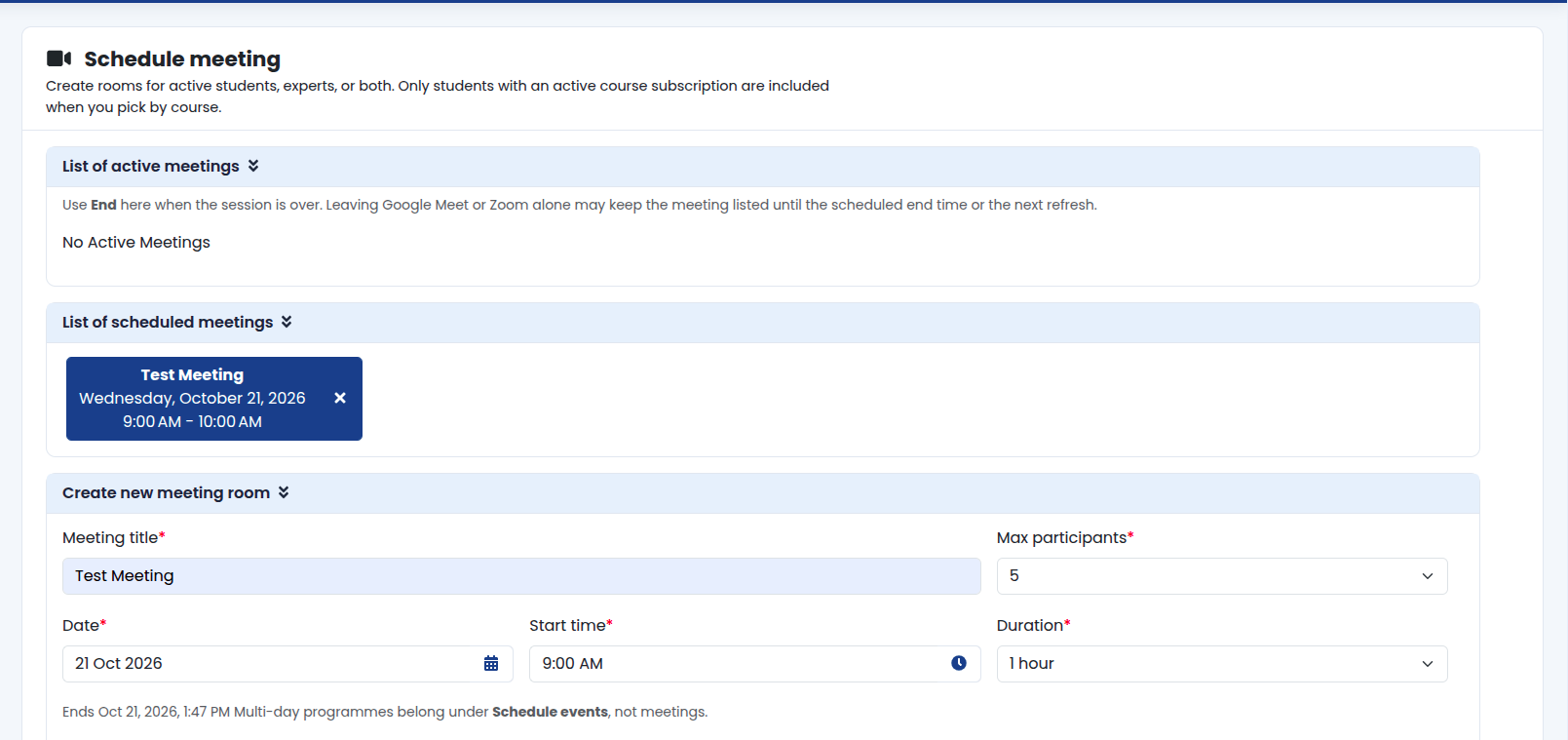
- Meetings: schedule live sessions when your institute uses the meetings plugin; share the time zone with students.
- Messages: reply to student questions from the messaging area when enabled.
- Reported questions: review quiz reports your students flag for errors or unclear wording.
See Assignments (expert) and Meetings (expert).
What you gain
- A clear path from login to visible course content for learners
- Fewer support tickets caused by unpublished outline activities
- Confidence before you run assignments or live classes at scale
Troubleshooting
| Course missing from your list | Admin assigned the course to your expert account |
|---|---|
| Cannot publish an activity | Course or activity publish flags; your role permissions |
| Students see different content | They may be on an older subscription; activity not published |
| No meetings menu | Meetings plugin disabled; ask an administrator |