Documentation
- Administrator
- Expert
Meetings and events
Teaching operations
Live teaching and institute dates stay inside eMedhaa so students are not sent to ad hoc links in chat. Schedule meeting creates course-linked video sessions when a provider plugin is enabled. Schedule events adds institute-wide dates that appear on student dashboards alongside assignments and notifications.
Administrators and experts both use these routes; experts only see meetings and events for assigned courses. Menu labels may read Teaching or Operations depending on your theme.
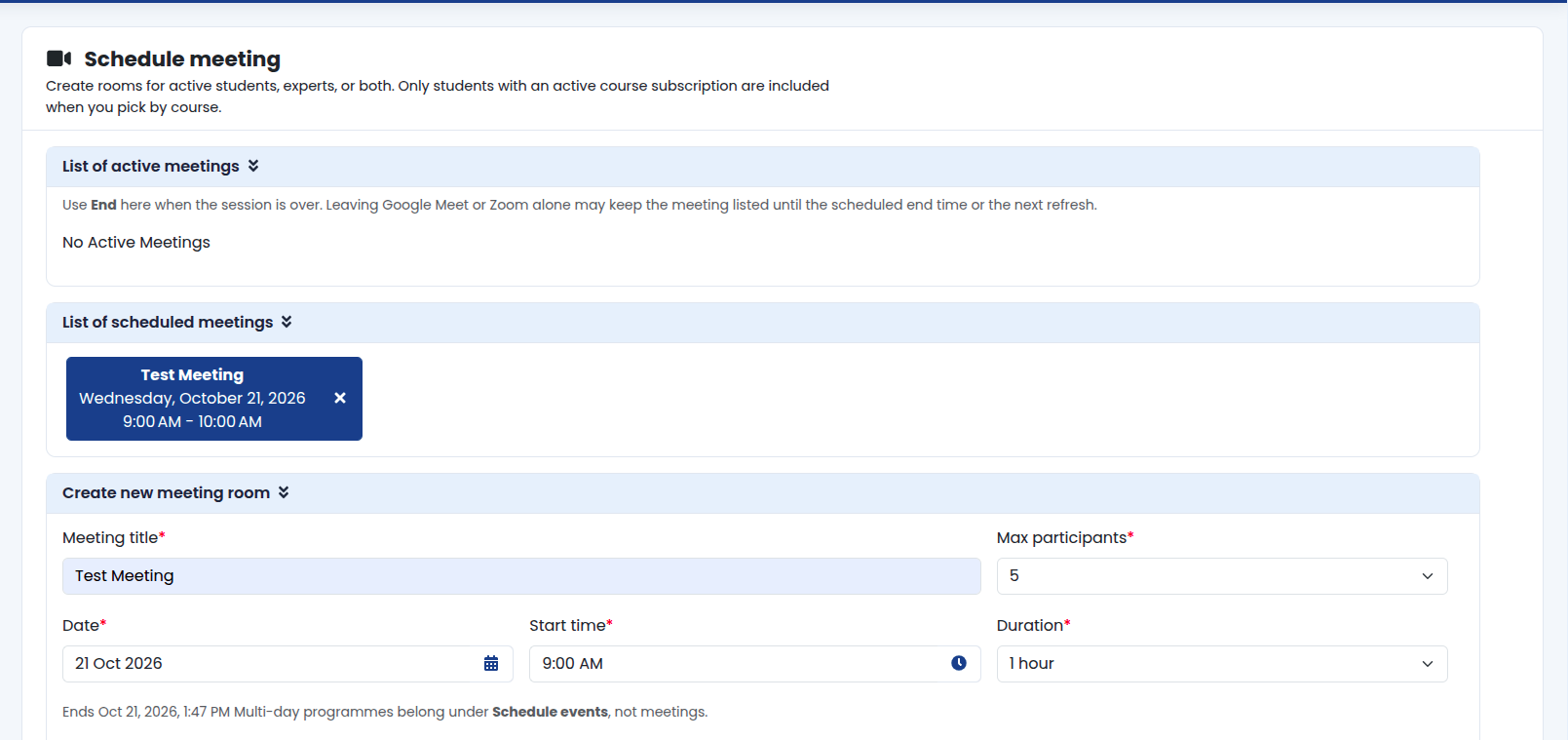
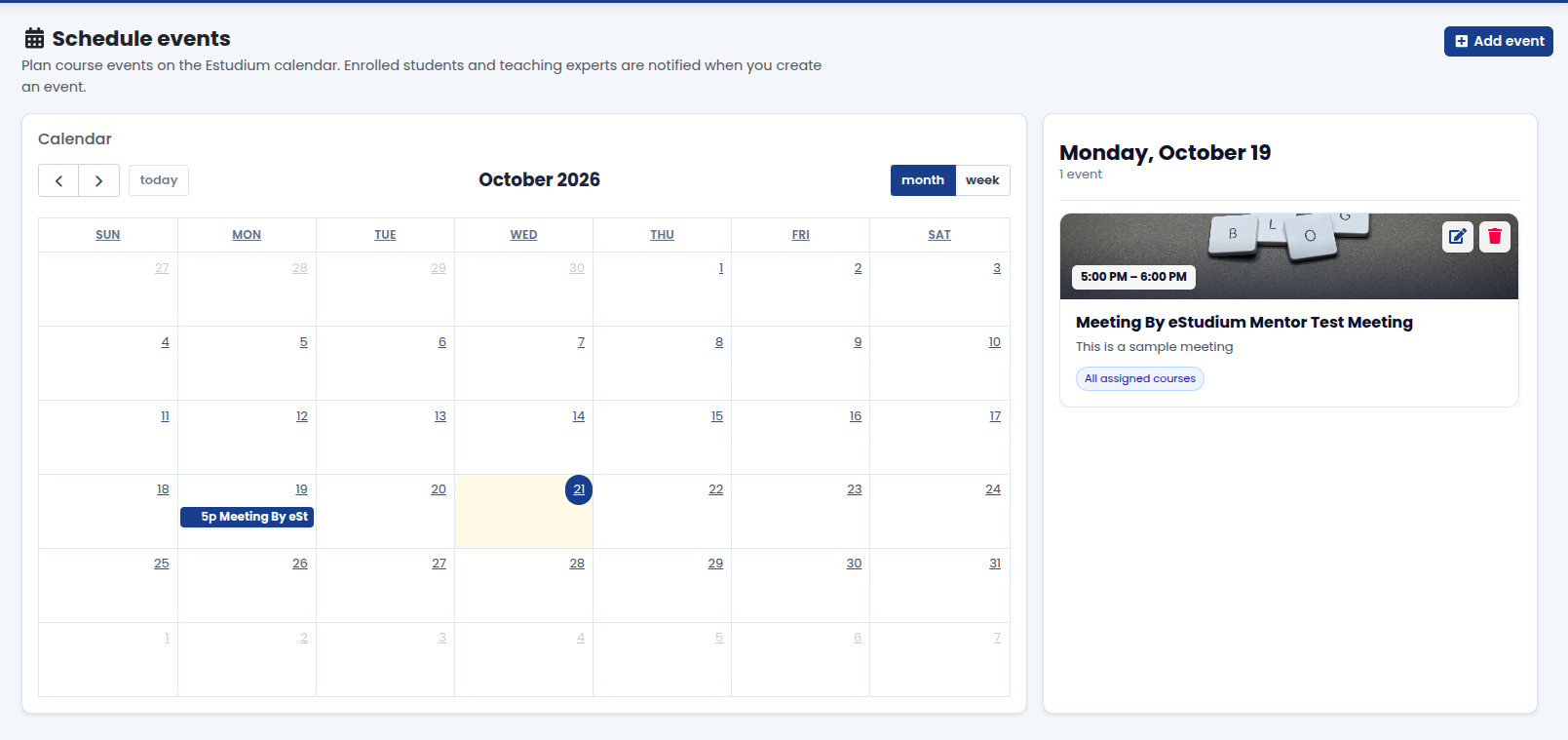
Meetings vs events
Meetings need provider credentials and an enabled plugin. Events do not require video integration.
- Schedule meeting: One live class or office hour with join details from Zoom, BigBlueButton, Google Meet, or another enabled provider
- Schedule events: Fixed dates such as exam week, holidays, or institute announcements
Before you schedule
- Open Plugins with your technical contact and enable the meeting provider your institute uses (Zoom, BigBlueButton, Google Meet, or others your deployment supports).
- Confirm provider credentials are saved in server configuration; without them, scheduling may fail or links will not generate.
- Publish the course and assign the expert so the correct roster sees the session.
See Plugins for enable/disable behavior.
Schedule a live meeting
- Open Schedule meeting from the administrator or expert menu.
- Select the course and set title, date, time, and duration.
- Add joining instructions or notes if your form supports them; the provider usually supplies the join URL when integrated.
- Save and confirm the meeting appears in the admin or expert list for that course.
- Ask students to check My meetings on the dashboard before the start time; portal notifications may also remind them when configured.
Experts follow the same flow for assigned courses only. See Meetings (expert) for the expert-focused view.
Schedule institute events
- Open Schedule events (admin menu; exact path varies).
- Create the event with title, date range, and description students should read.
- Assign courses when the event applies to specific batches; leave or set scope according to your institute policy for institute-wide dates.
- Save and spot-check the student dashboard or calendar widget with a test student account.
Use events for dates that are not a live video session (for example registration deadlines or exam timetables).
What you gain
- Synchronous teaching without sending students to random external links
- Join details and reminders in the portal students already use
- Clear separation between live classes (meetings) and calendar notices (events)
Troubleshooting
| Schedule meeting menu missing | Meeting provider plugin disabled under Plugins |
|---|---|
| No join link after save | Provider credentials; server logs (technical team) |
| Students do not see the meeting | Course enrollment; meeting linked to correct course; student checked My meetings |
| Expert cannot schedule | Expert assigned to the course; same plugin enabled as for administrators |
| Event not on dashboard | Event dates, course assignment, and student login to the correct institute site |