Documentation
- Administrator
First steps for administrators
Getting started
This guide walks a new institute administrator from first login through a minimal live configuration: branding, one marketing page, one course with an outline, and one enrolled test student. Complete it before you invite teachers or open registration to the public.
Before you begin
You need an administrator account created by your hosting partner or technical team. You also need:
- Institute logo (PNG or SVG) and short tagline
- Contact email and phone for the website footer
- At least one course definition (board, class, subject) you plan to sell or assign
- Agreement on whether students pay online or are enrolled manually
If Google Analytics or social login are required, your IT team must configure server credentials before you enable toggles in Site content (see integration guides).
Step 1: Sign in and orient yourself
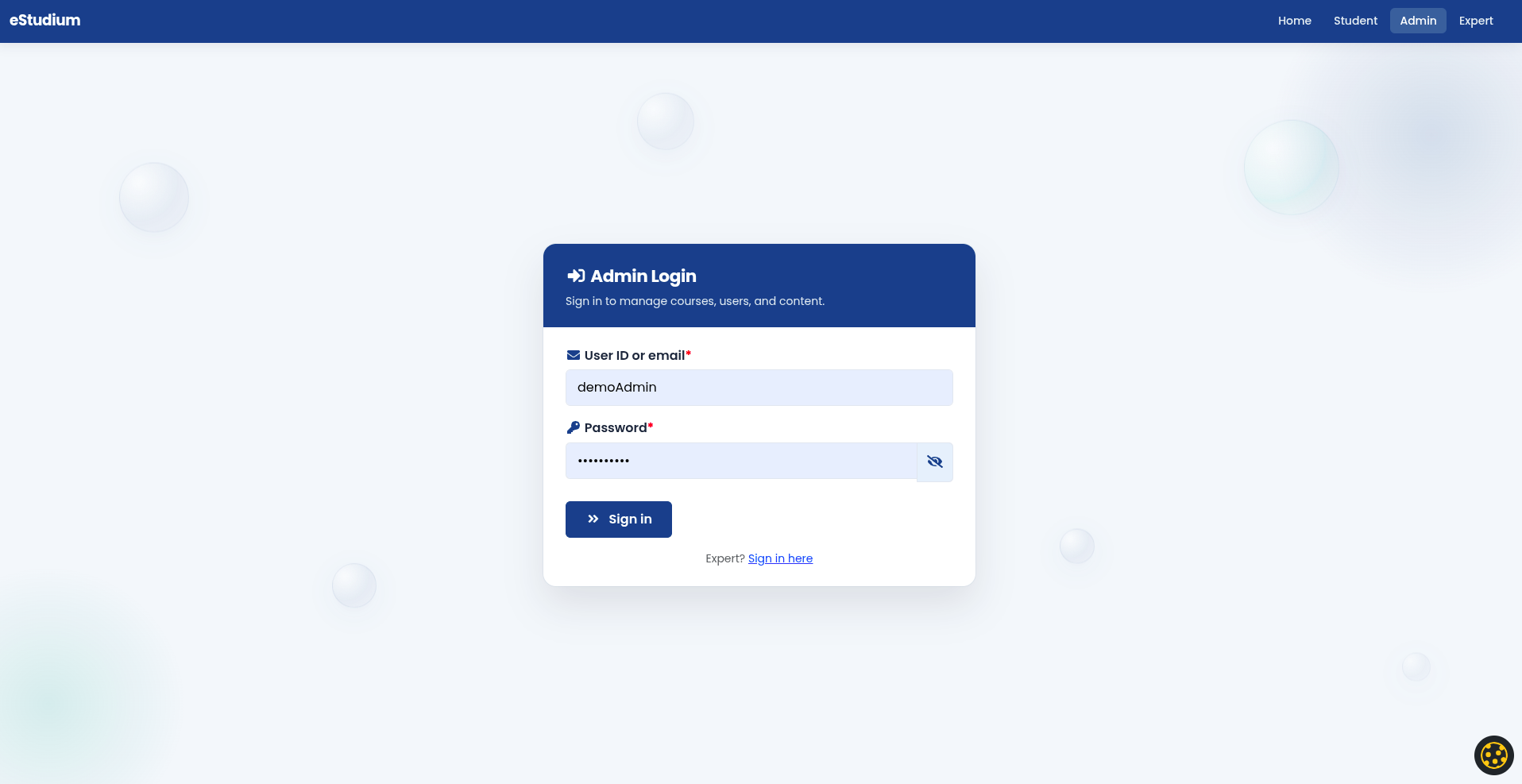
- Open your institute URL and go to Admin login.
- Enter your User ID (or email) and password.
- On the dashboard, note the sidebar groups: Overview, Courses & LMS, People, Operations, Content & site, Platform.
The dashboard shows counts of students, experts, courses, and recent orders when data exists. Use it daily for a quick health check.
Step 2: Configure global header and footer
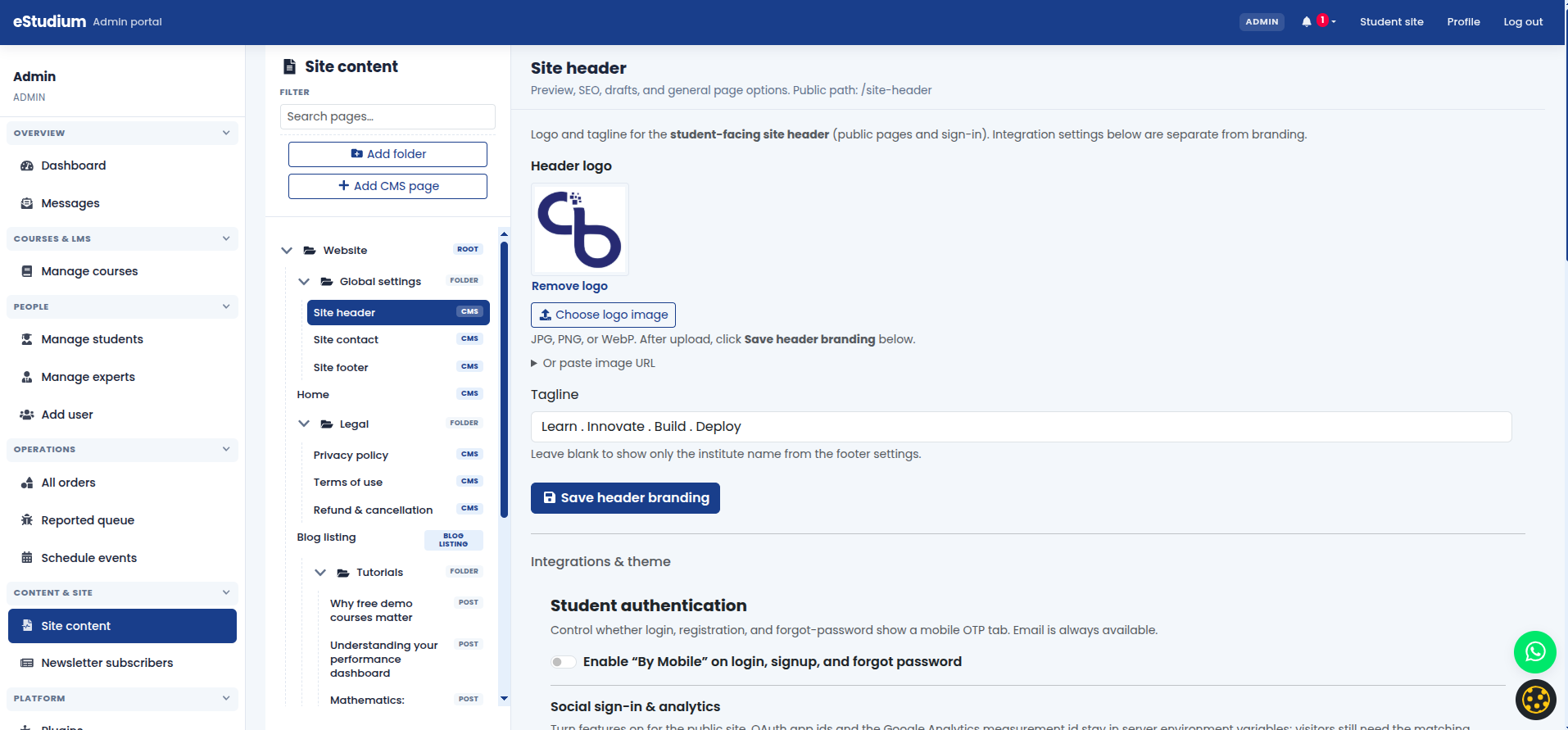
- Open Site content in the sidebar.
- In the tree, select Site header.
- Upload or set the logo, enter the tagline, and save.
- Configure contact and social URLs if your deployment exposes them on this page.
- Select Site footer and enter company name, short description, and social links.
- Publish changes.
Why this matters: Students and parents judge trust from consistent branding on every page, including login and checkout.
Step 3: Publish or refresh the home page
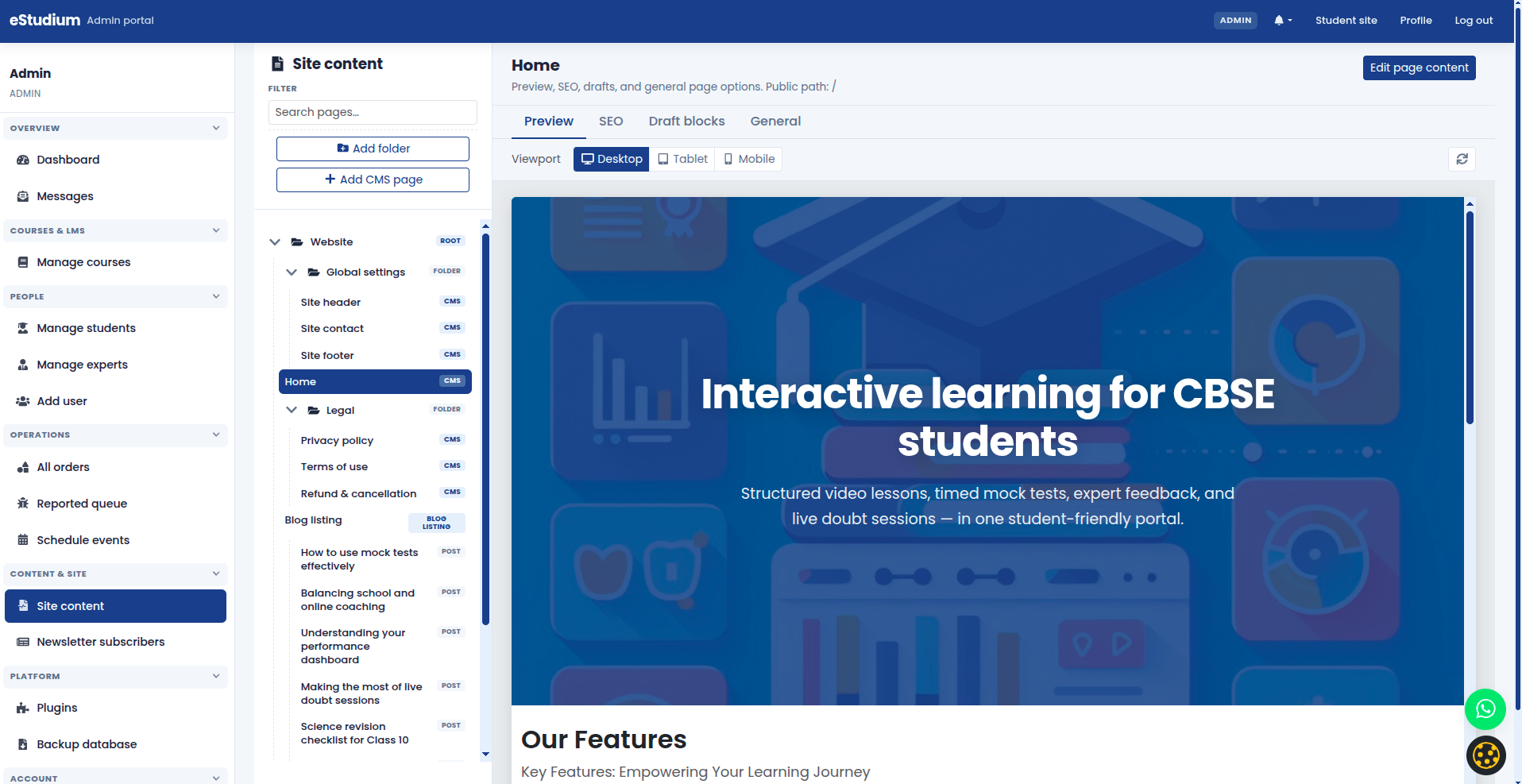
- In Site content, open Home.
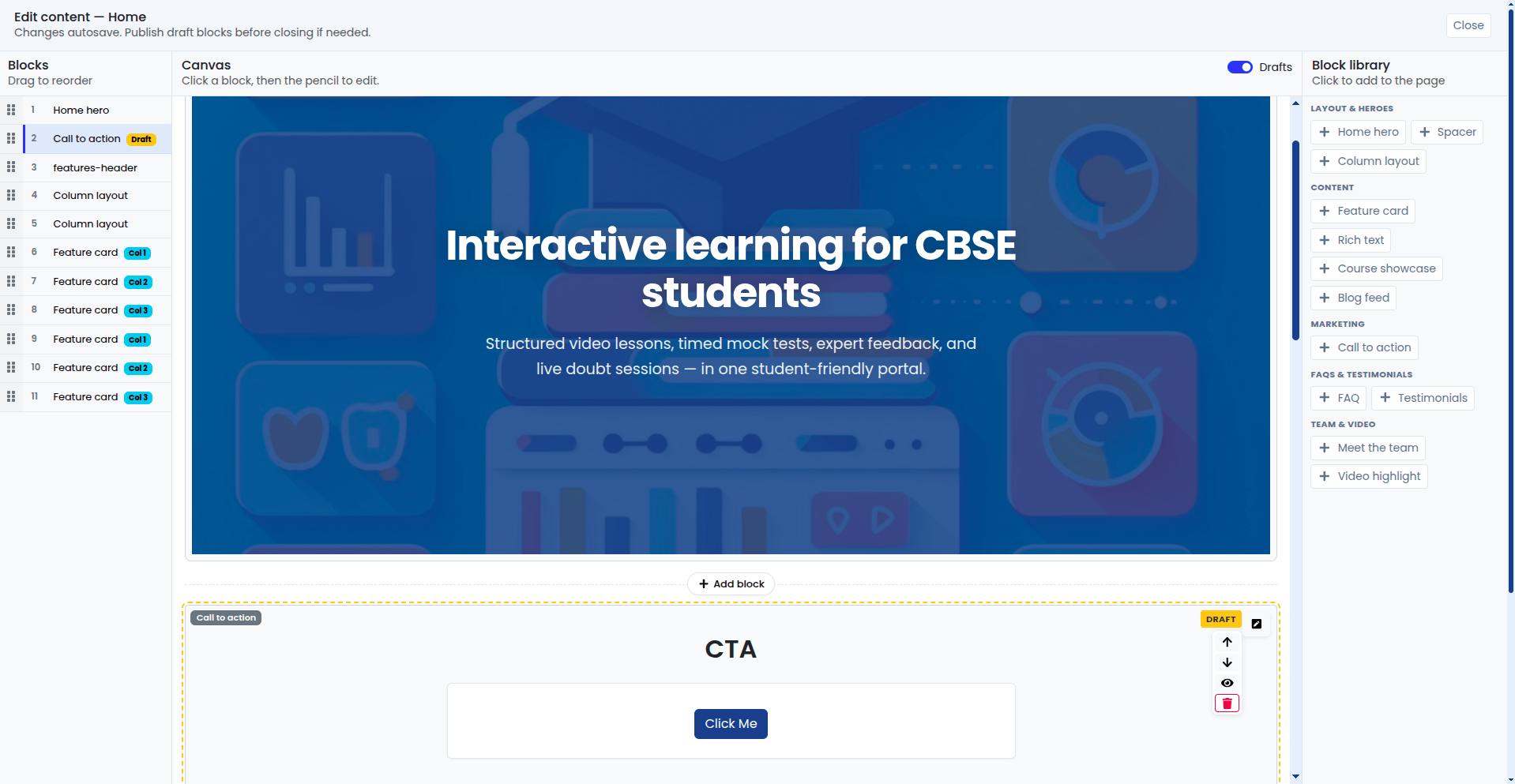
- Choose Edit page content.
- Add or edit a Home hero block with your headline and value proposition.
- Add Feature card or Column layout blocks for three core benefits (for example mock tests, live classes, progress tracking).
- Optionally add Course showcase or Blog feed blocks.
- Preview on desktop and mobile; publish all drafts.
See Site content overview and Block builder.
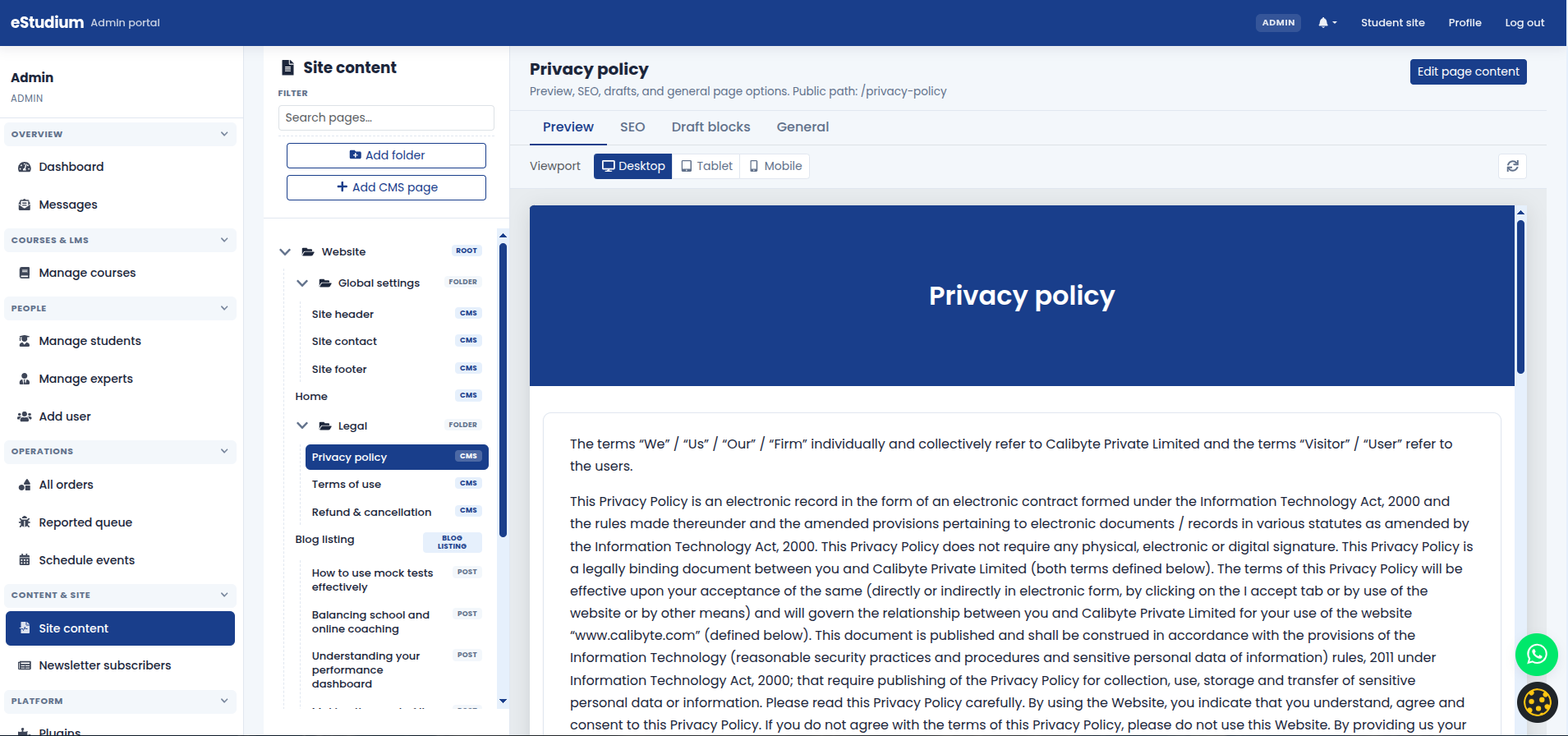
Step 4: Legal and privacy pages
- Open Privacy policy, Terms of use, and Refund & cancellation in the tree.
- Replace placeholder copy with your institute’s legal text (your counsel should review).
- Mention cookies, analytics, OAuth providers, and payment processors you use.
- Publish each page.
Students see cookie choices on first visit; the privacy link must be accurate. See Cookie consent.
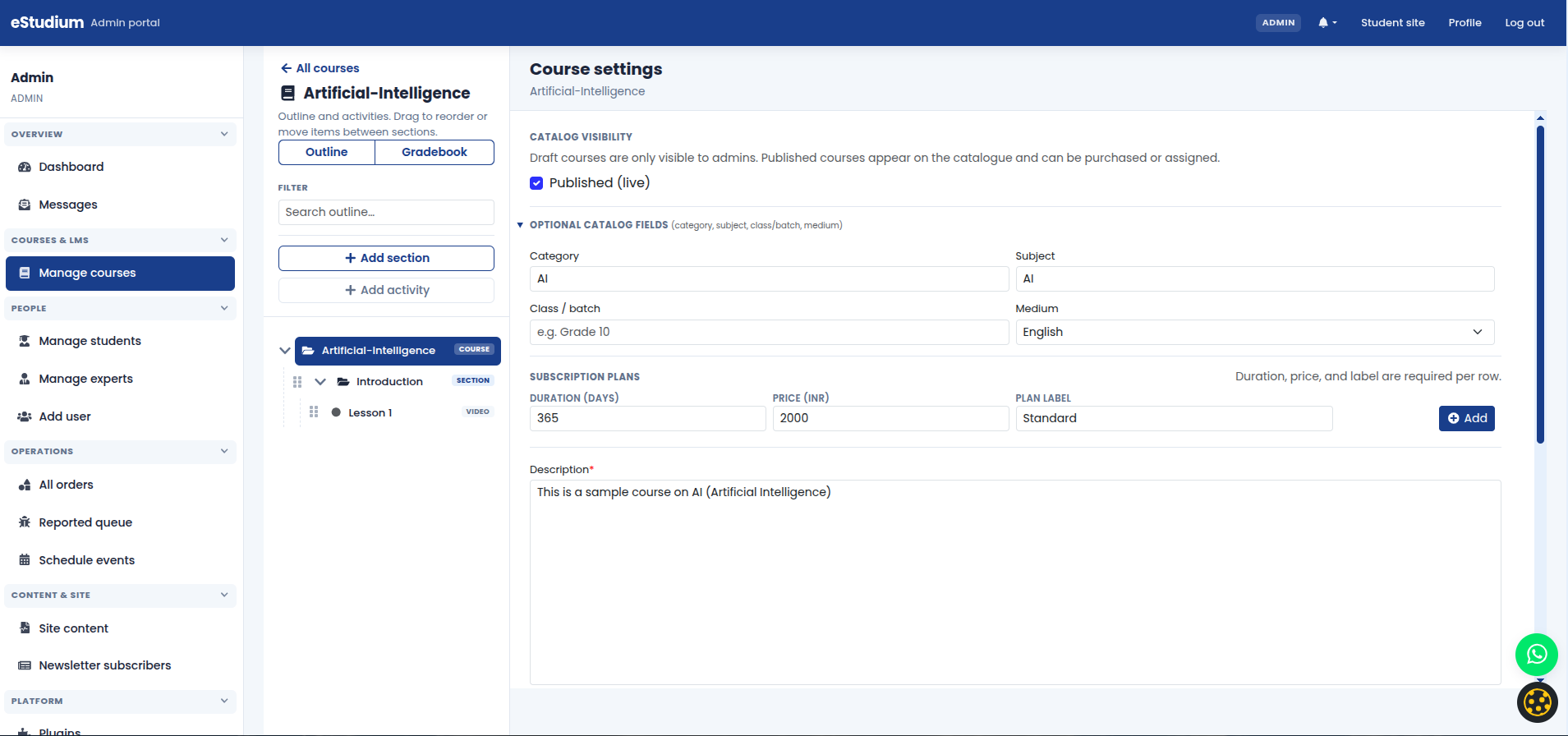
Step 5: Create your first course
- Open Manage courses.
- Create a course with board, class, subject, medium, description, and pricing (or free).
- Set the course published when ready for the catalogue.
- Open the Outline for that course.
- Add a section (for example “Introduction”).
- Add a Rich text welcome activity and one Video activity.
- Publish activities.
See Course outline.
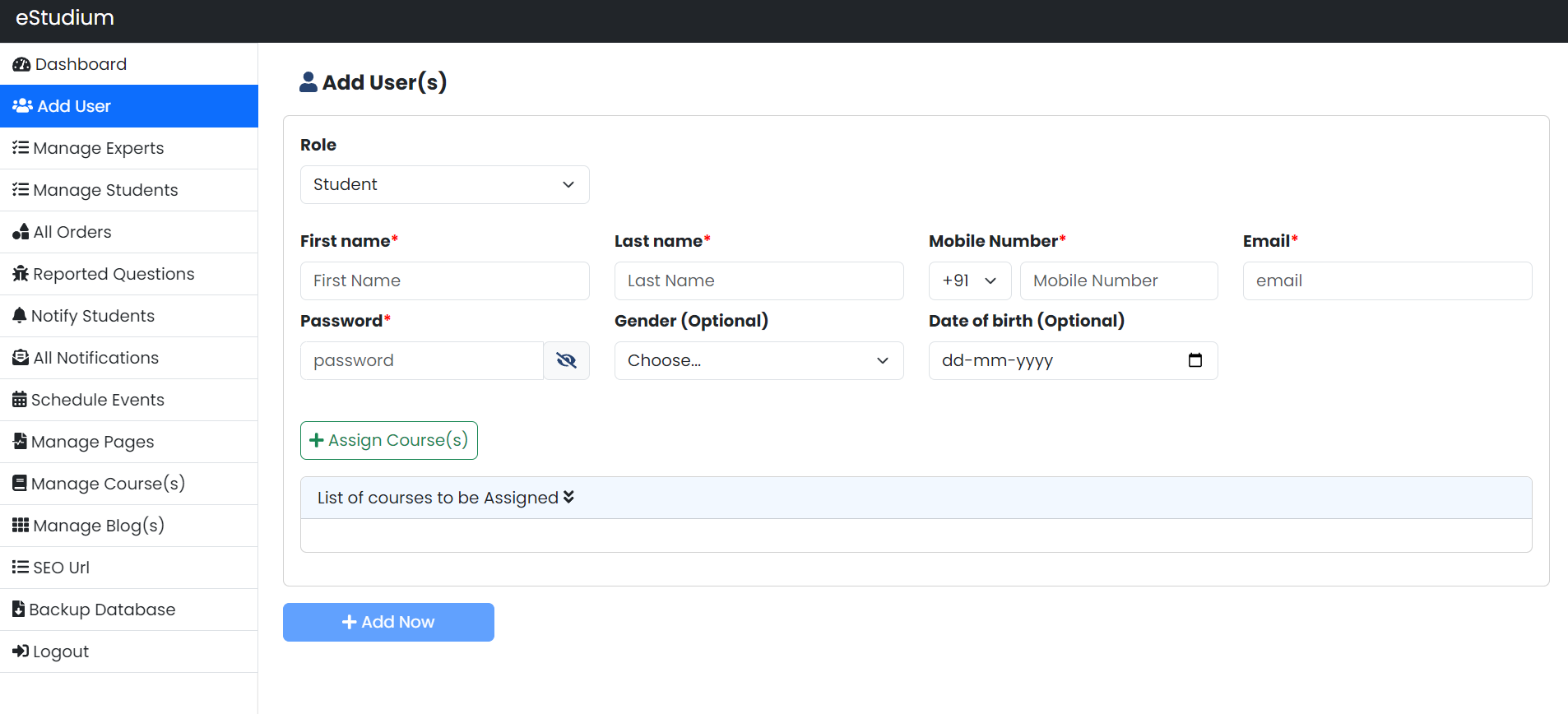
Step 6: Enroll a test student
- Open Add user and create a test student, or use Bulk enroll with one CSV row.
- Alternatively, open Manage students → add subscription for an existing user.
- Log out and sign in as that student (or use a second browser).
- Confirm My courses shows the course and activities open correctly.
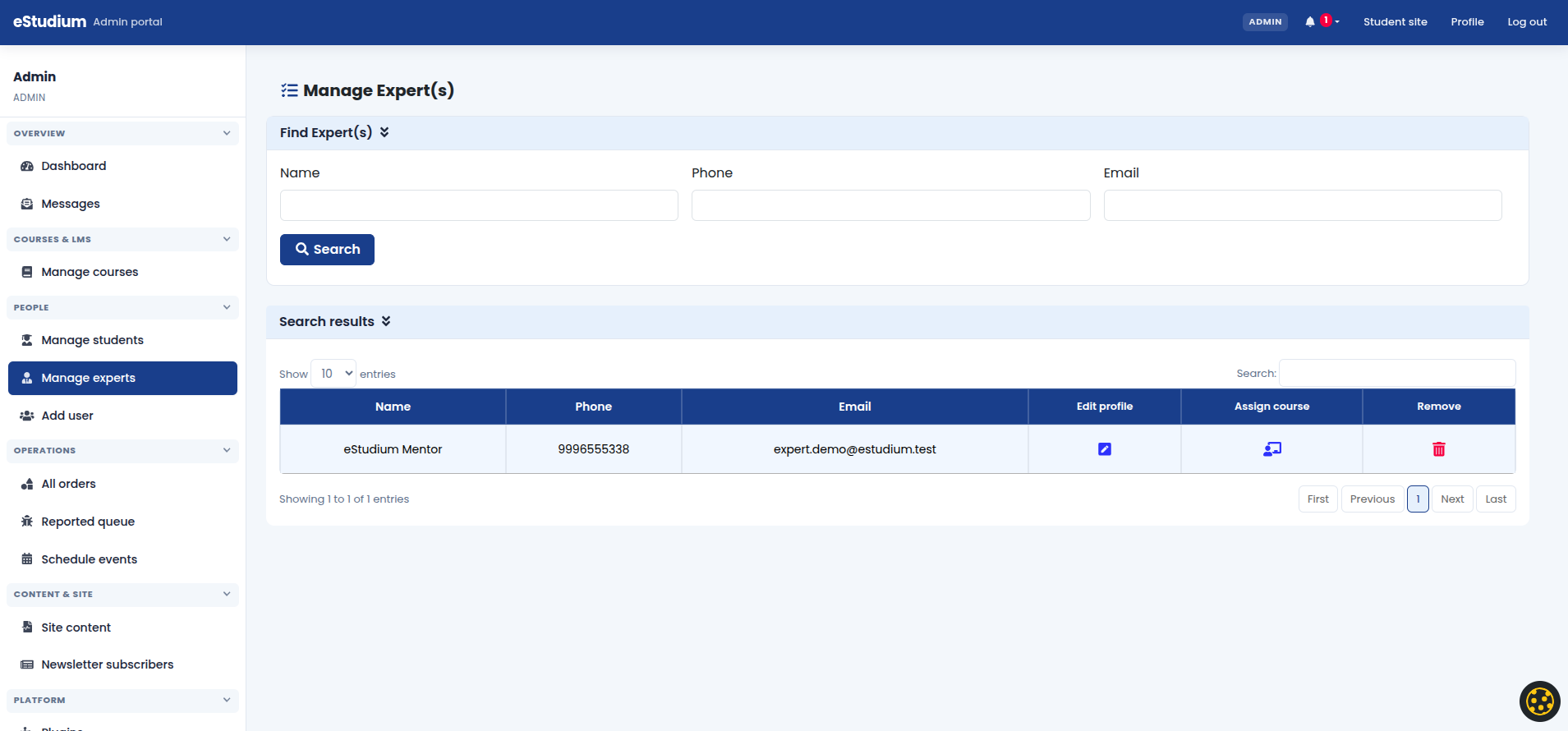
Step 7: Invite an expert (optional)
- Open Manage experts and create a teacher account.
- Assign courses they should teach.
- Ask them to complete First steps for experts.
Step 8: Enable plugins and payments (when ready)
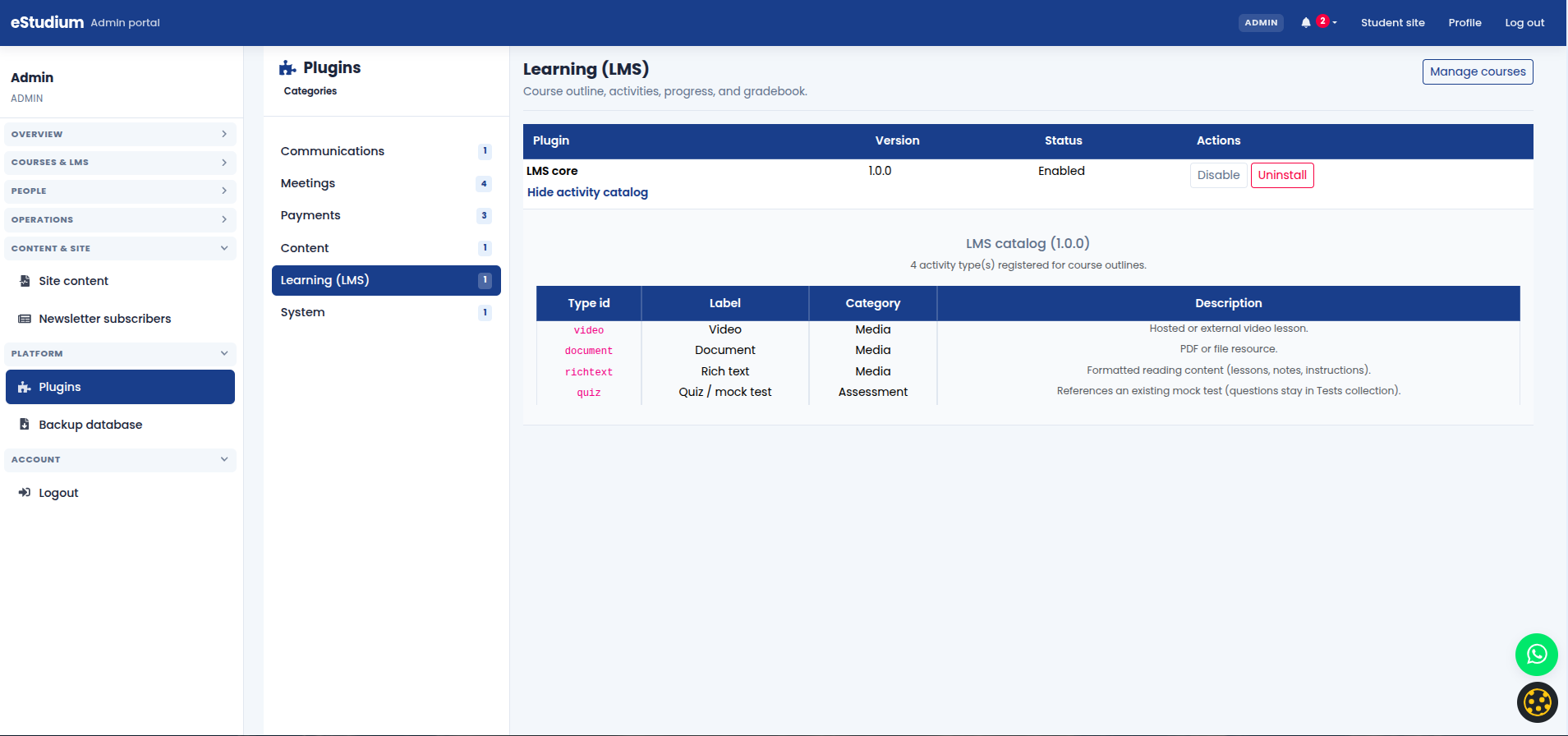
- Open Plugins and confirm CMS and LMS are enabled.
- Enable payment plugins only after merchant credentials are configured.
- Run one test purchase before advertising paid courses.
Next steps
What you gain
- A branded public face and trustworthy legal pages
- One verifiable learning path end-to-end
- Confidence before scaling users, content, and marketing
Troubleshooting
| Student does not see a course | Subscription status; course published; student logged in with correct account |
|---|---|
| Outline activity missing | Activity not published; student subscription expired |
| Logo not updating | Site header block published; hard refresh; CDN cache |
| Cookie banner on every visit | Browser blocking storage; test in normal (non-incognito) window |