Documentation
- Administrator
Messages and notifications
Communication
Staff and students stay in touch through Messages (threaded conversations) and portal notifications (short alerts on the dashboard). Administrators usually have the broadest reach; experts message within their courses; students read and reply from the student portal.
Capabilities at a glance
Exact menu labels and permissions depend on your institute’s roles and plugins.
- Administrator: Open threads with students and experts; compose from the admin Messages area
- Expert: Message assigned students and follow threads
- Student: Read and reply in the student portal
Admin interface
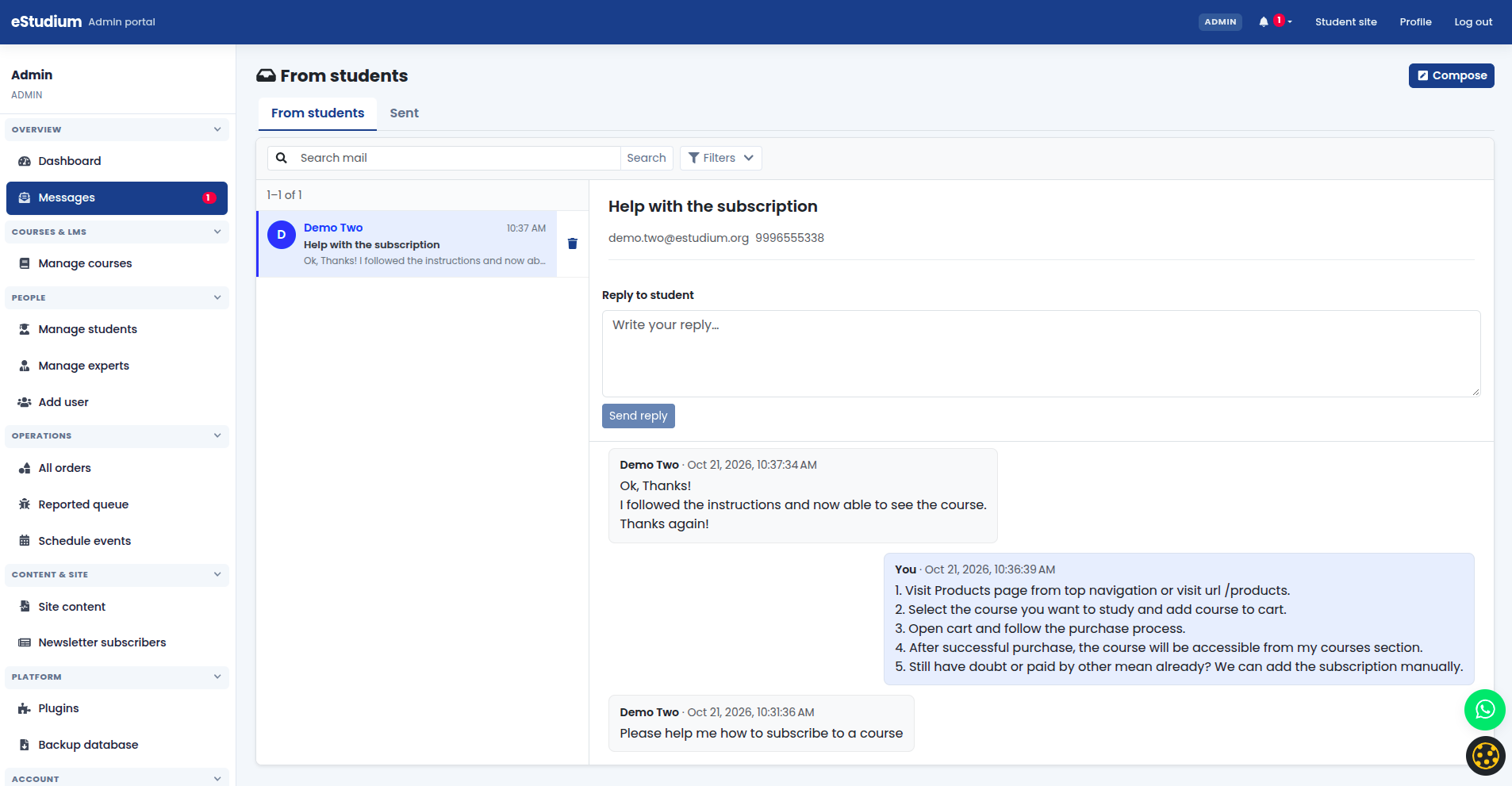
Open Messages from the administrator sidebar (wording may vary). Typical tasks:
- Open an existing thread or start a new conversation with a student or expert.
- Review replies without leaving the admin workspace.
- Use notifications alongside messages when your deployment surfaces institute alerts on the admin dashboard.
Documentation screenshot: Use the block below this section for a capture of the admin Messages screen (inbox and compose). Replace the placeholder image with your institute’s UI.
Student portal
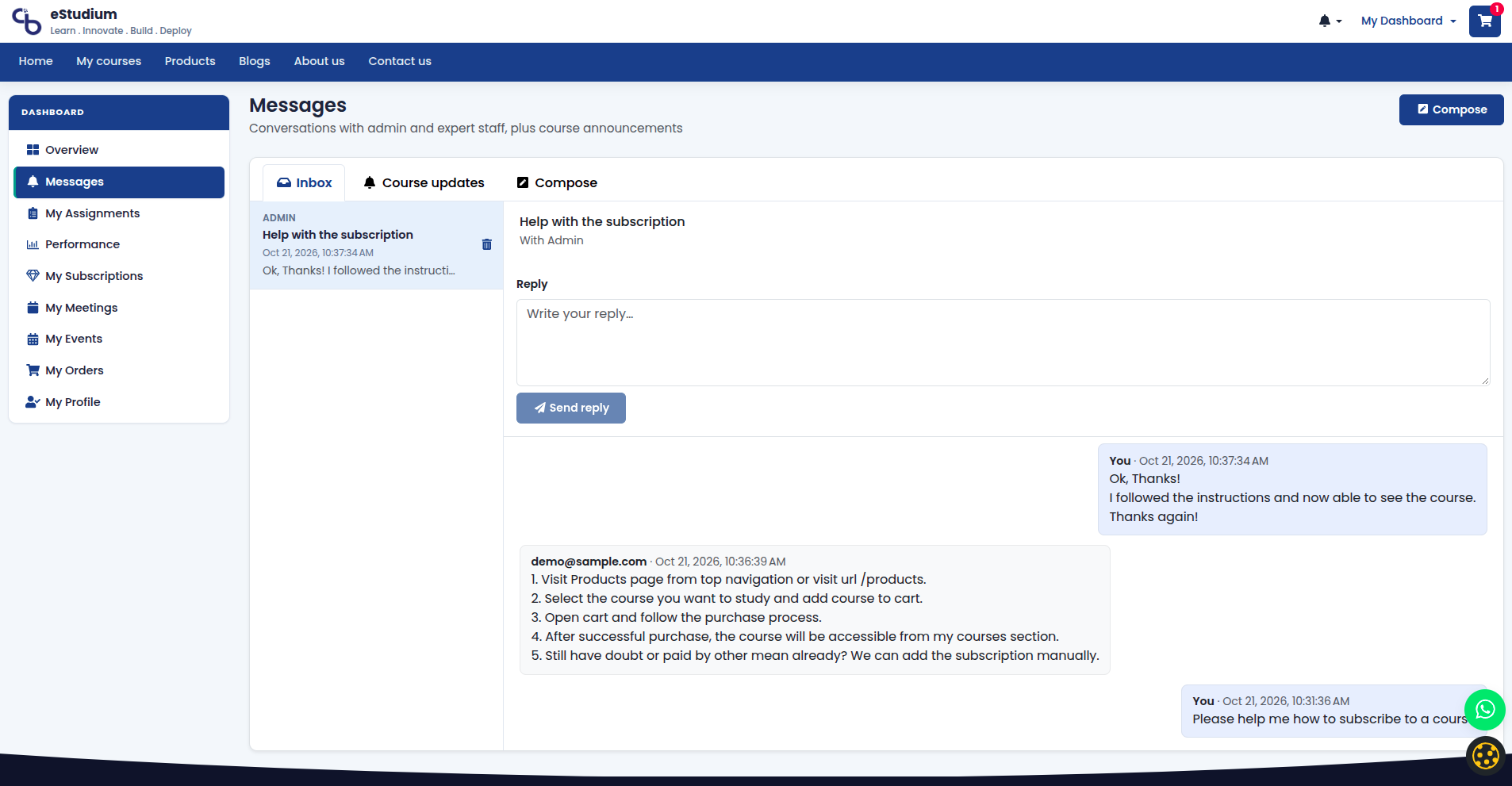
After login, students see Messages and notifications on the dashboard or message menu:
- Messages: two-way threads with staff (for example course or admission questions).
- Notifications: short notices such as upcoming meetings or institute announcements; not a full email replacement.
Newsletter subscribers
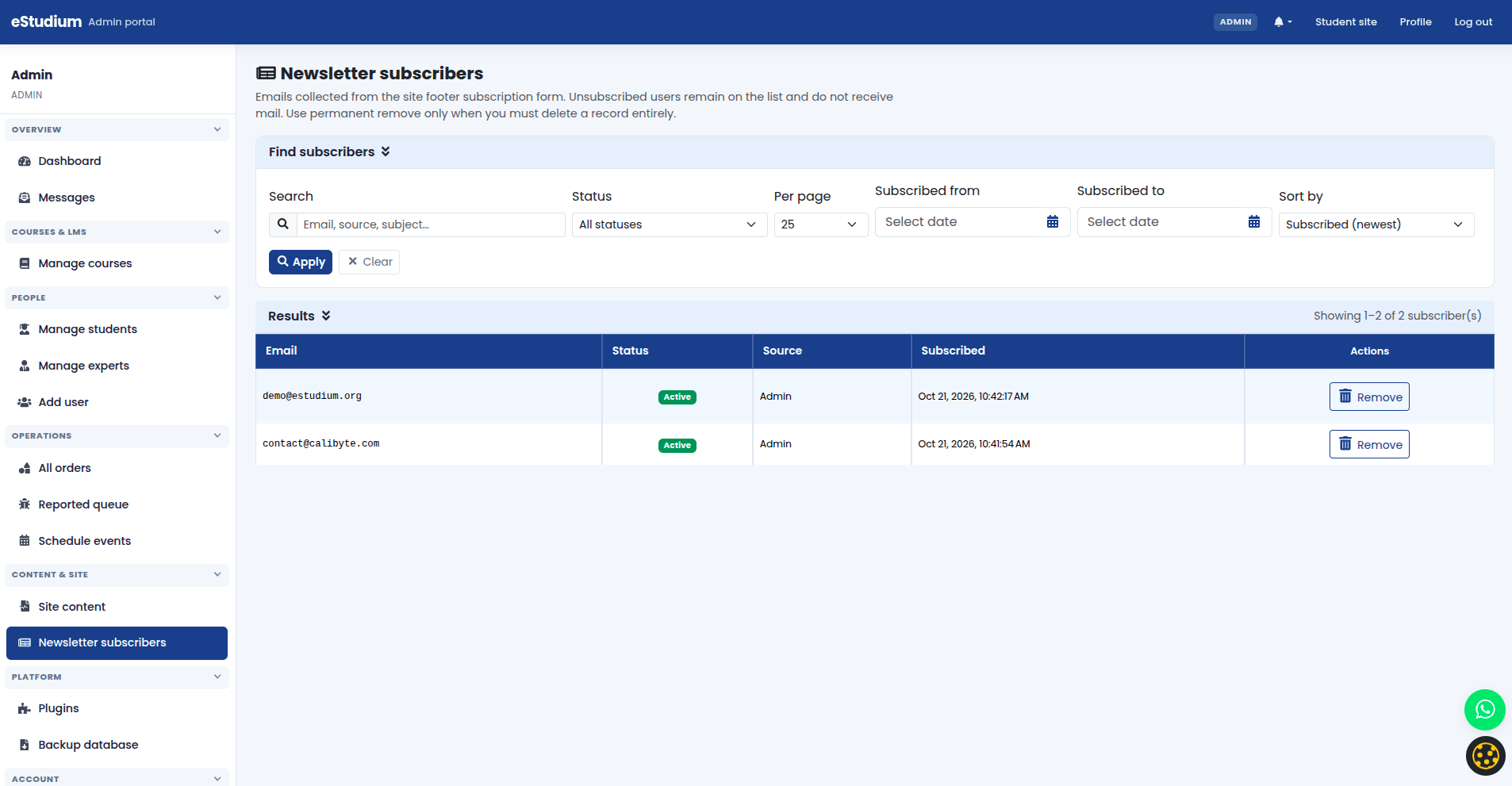
Newsletter subscribers (admin) lists emails collected from the site footer signup. Export or campaign use depends on your marketing tools; it is separate from in-app Messages.
What you gain
- Fewer missed deadlines when notifications reach the portal students already use
- Auditable threads instead of scattered personal WhatsApp for official queries
- One place for administrators to follow up on student questions
See also
You finished Communication
Continue to Teaching operations →