Documentation
- Administrator
- Expert
Reported questions
Teaching operations
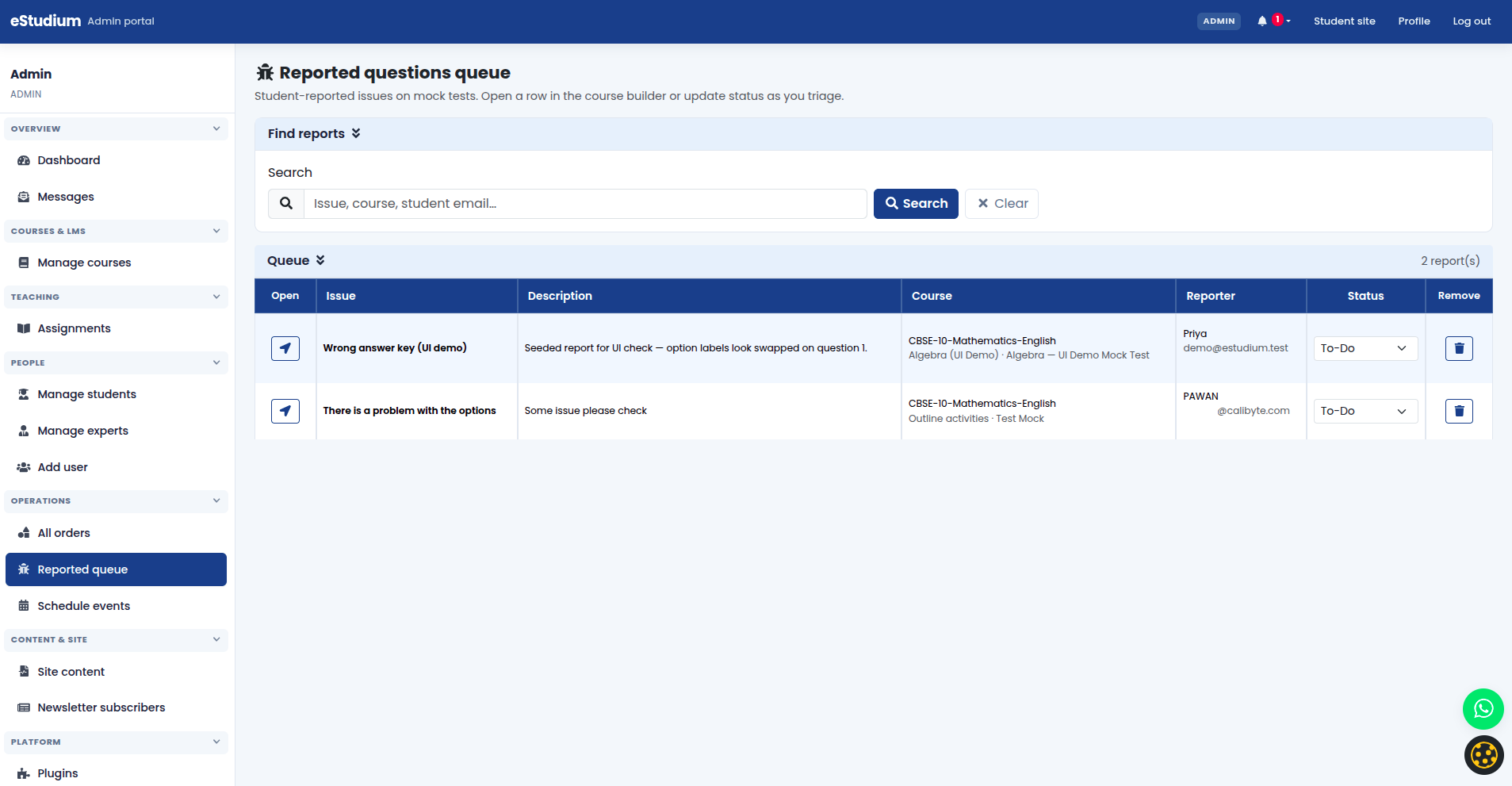
During a mock test or quiz attempt, students can report a question when they believe the wording is wrong, the key is incorrect, or the item is unclear. Reports land in Reported questions in the administrator or expert menu so staff can fix content or record a ruling without losing trust in assessment data.
Reporting is not a grade appeal by itself: it flags content quality. Pair this queue with the course gradebook when you review weak topics or parent updates.
Who handles reports
Experts cannot change institute-wide plugins or unrelated courses; administrators can escalate fixes that require republishing outline activities.
- Administrator: Full Reported questions queue across courses
- Expert: Reports for mock tests and courses they are assigned to teach
What each report contains
Staff typically see the question text, the student note (if the student entered one), and context such as course or mock test name. Use that context to open the correct mock test in the LMS editor rather than guessing from memory.
Handle a report
- Open Reported questions from the admin or expert menu and sort or filter by date if your UI supports it.
- Read the student note alongside the displayed question and options.
- Open the linked mock test or outline activity and verify the intended correct answer and wording.
- If the item is wrong: edit the question, save, and republish the mock test and related outline activity so new attempts use the fix.
- If the item is correct: note your ruling for internal records; communicate to the class if many students flagged the same item (for example via Messages).
- Mark or clear the report according to your institute process so the queue stays current.
Repeat fixes in the mock test editor rather than only replying to the student, so future attempts stay consistent.
After you change content
- Existing Performance attempts may still show old scoring until students retake or you follow your institute policy for re-grading.
- Spot-check one student attempt after republish to confirm the updated text appears.
- Use the gradebook for the course to see whether the topic still underperforms after the fix.
What you gain
- Defensible assessment data and a feedback loop to improve question quality
- A single queue instead of scattered chat screenshots about quiz errors
- Faster expert response when reports stay inside assigned courses
Troubleshooting
| Reported questions menu missing | LMS plugin enabled; user role is administrator or expert |
|---|---|
| Expert sees an empty queue | Expert assigned to the course; report was for another batch |
| Fix not visible in quiz | Mock test and outline activity republished; student started a new attempt |
| Same question reported many times | Bulk fix in mock test; optional class message explaining the correction |
| Student expects instant grade change | Grading rules and whether retakes are allowed for that mock test |
See also
You finished Teaching operations
Continue to Platform →