Documentation
For
- Expert
Assignments (expert)
Expert
Assignments give structured homework: instructions, due dates, and file or text submissions from students. Experts create assignments for assigned courses, download submissions, grade, and leave remarks administrators can audit when needed.
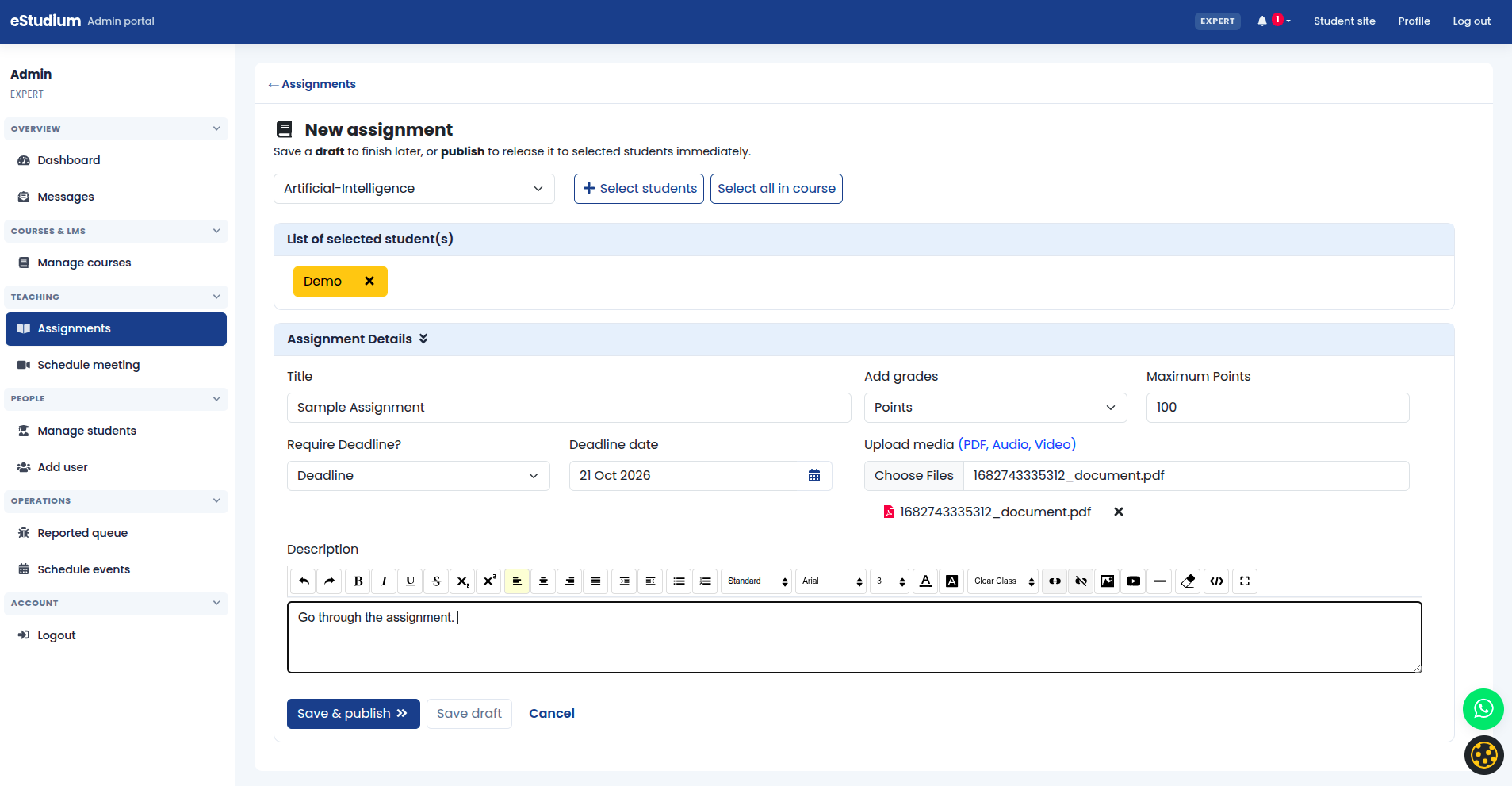
Create an assignment
- Open Create assignment (or Assignments → create) from the expert menu.
- Select the course you teach; only assigned courses should appear.
- Enter a clear title, deadline, and instructions (what to submit, file types, word limits).
- Save and confirm the assignment appears on the expert list and student dashboard when published.
- Tell students where to submit: student portal Assignments or the dashboard card for that course.
Set deadlines in the institute time zone your portal uses. Late submissions depend on institute policy; the system records submission time.
Review and grade submissions
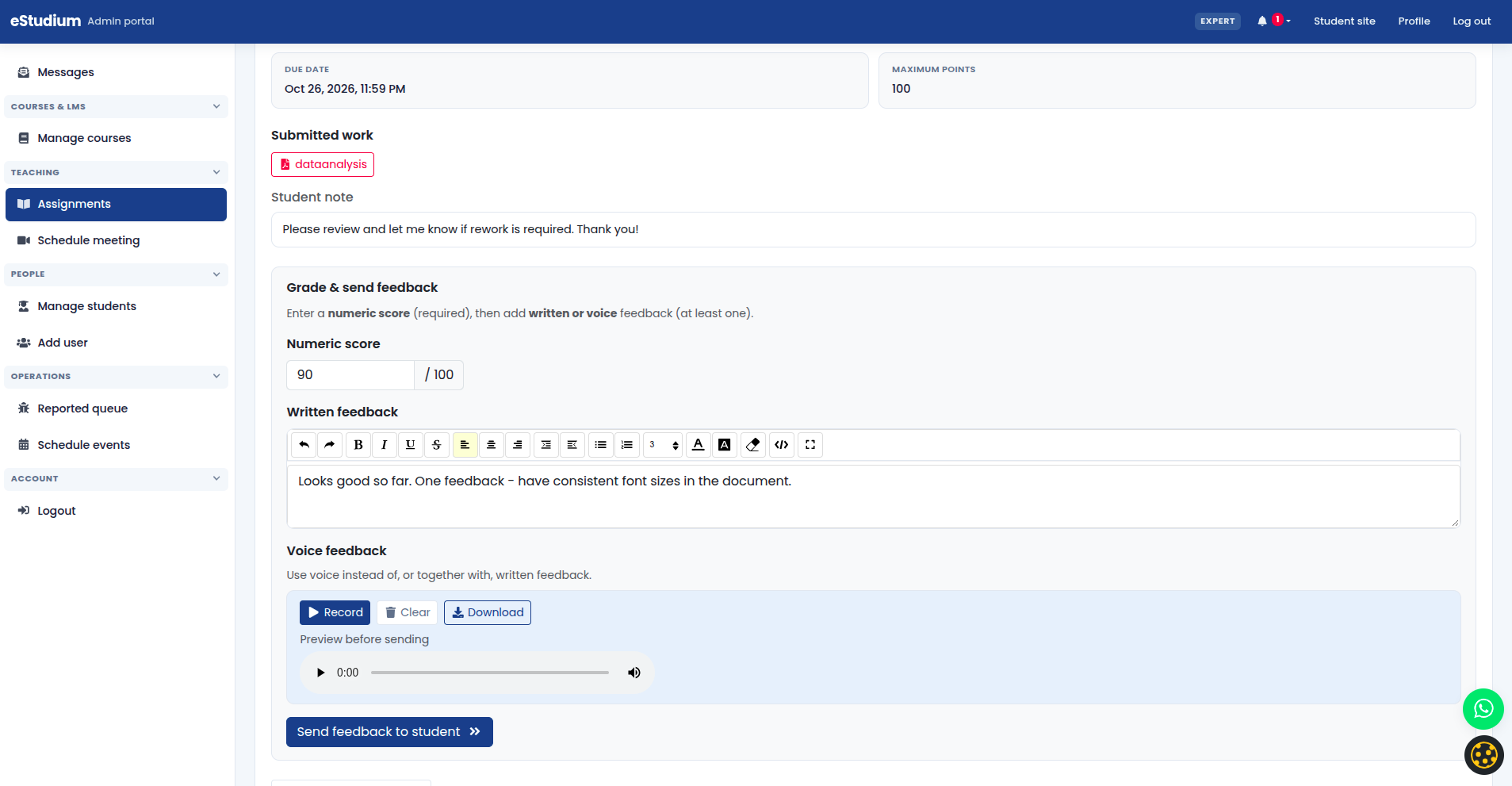
- Open View assignments (or the assignment list) and select the assignment.
- Open each student row to download files or read text responses.
- Enter grade and comments according to your rubric.
- Save so students see feedback on their portal when your deployment supports it.
- Export or note grades locally if your institute requires a separate gradebook export.
Administrators may open the same routes for support; experts remain the primary graders for assigned courses.
Before the due date
- Publish related outline activities so instructions match what students see in the course.
- Send a Message reminder if messaging is enabled and your policy allows it.
- Spot-check one test submission with a demo student account when possible.
What you gain
- Centralised submissions instead of email attachments
- Due dates visible on the student dashboard
- A trail of grades and comments for academic review
Troubleshooting
| Course not in create list | Expert assigned to course; refresh after admin assignment |
|---|---|
| Student cannot submit | Due date passed; file size limits; student enrollment |
| Empty submission list | Wrong assignment selected; students not yet enrolled |
| Student sees assignment, cannot upload | Browser; allowed file types; mobile vs desktop |